Free Sound Test And Audio Check Left & Right Speaker Online
You hit play on your favorite song. But something feels off. The sound seems louder on one side. Or maybe one speaker is completely dead. You are not imagining it — and this Sound Test tool will tell you exactly what is going on in seconds.
No downloads and signup for sound test. Just open the audio test tool, press a button, and your speakers tell the truth.
What Is a Sound Test?
A sound test is a simple diagnostic tool that checks whether your speakers or headphones are working correctly. It plays a controlled audio signal — like a tone or a vocal cue — through each channel so you can hear exactly what is and is not working. Think of it like a vision test, but for your ears and your speakers.
Our free online sound test checks left and right channel balance, frequency response, stereo separation, and audio clarity — all from your browser. It works on any device: phone, laptop, tablet, desktop, or Bluetooth speaker.
Who Needs to Test Their Audio?
Anyone who uses speakers or headphones. You might need a sound test if your audio feels uneven, if one ear of your headphones sounds quieter than the other, or if you just bought a new audio device and want to make sure it is working correctly. Gamers, musicians, video editors, podcast listeners, and everyday users all use it for different reasons.
Audio test is also useful after any kind of audio troubleshooting. If you changed a setting, updated a driver, or reconnected a cable — a quick audio check confirms everything is back to normal.
How to Use this Audio Test Tool
Using audio test tool takes less than one minute. Here is exactly what to do.
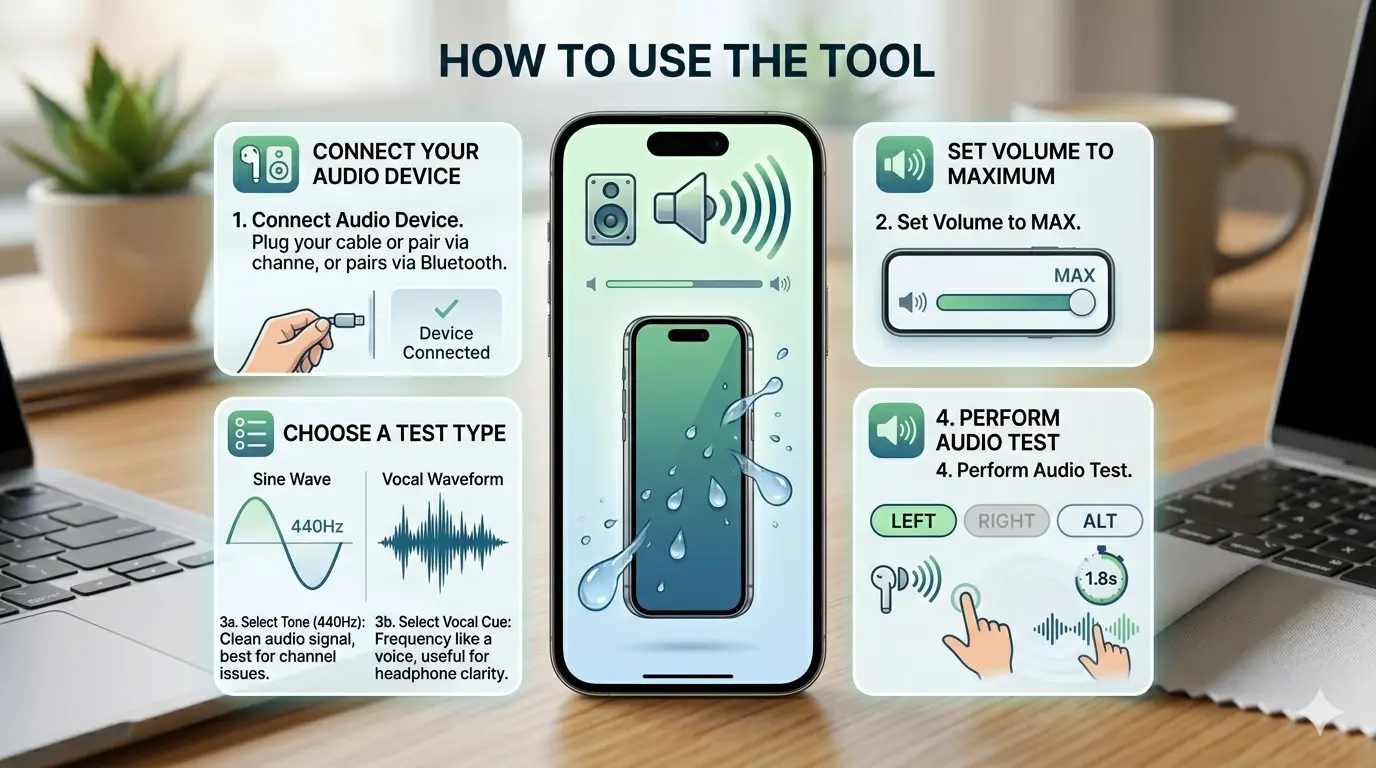
Connect Your Audio Device
Plug in your speakers, headphones, or earbuds before starting. If you are using Bluetooth, make sure your device is fully connected and set as the active output in your system settings. Disconnect any other audio devices so the audio test plays through the right one.
Set Volume to Maximum
Turn your device volume all the way up before you start audio test. The test tones are calibrated — you need full volume to hear both channels clearly, especially the quieter one if there is a balance issue. A low volume can mask problems and give you a false pass result.
Choose a Test Type
Select Tone (440Hz) for a clean, pure audio signal — this is best for detecting channel issues and balance problems. Select Vocal Cue for a slightly different frequency that sounds more like a voice — useful if you are testing headphones or earbuds for everyday listening clarity.
Click Left, Right, or ALT
Press the LEFT button. Sound should come only from your left speaker or left earbud. Press RIGHT — sound should come only from the right side. Press ALT to automatically alternate between left and right every 1.8 seconds, so you can sit back and compare both channels without clicking.
What Gets Checked
This is not just a left-right click. Audio test tool covers the most important aspects of audio quality in one place.
Left and Right Channel Balance Test
This is the core of any audio test. Each stereo channel — left and right — carries different audio information. If one channel is louder, missing, or distorted, your audio experience is broken. The balance test plays a tone through each side independently so you can confirm both are equal and correctly positioned.
If you hear the left channel sound coming from your right speaker, your cables or settings are crossed. Swap your connections or check your OS audio balance slider and that fixes it in most cases.
Frequency Response Test (20Hz to 20kHz)
Human hearing ranges from 20Hz (deep bass) to 20kHz (high treble). A frequency response test sweeps through this range to reveal which parts your speakers or headphones can and cannot reproduce. Budget laptop speakers usually drop off below 150-300Hz. Good over-ear headphones can reach all the way down to 20Hz.
If you hear the sound suddenly disappear or go quiet at a certain frequency, that is your device’s physical limit — not a fault. If it rattles or buzzes, that is a resonance problem worth investigating.
Bass and Subwoofer Test
The bass test focuses on low frequencies — typically 20Hz to 250Hz. Small speakers and earbuds cannot reproduce anything below 80Hz. A dedicated subwoofer can reach as low as 20Hz, which you feel more than hear. Use the bass test to find your device’s low-frequency limit and check whether your subwoofer is actually outputting sound.
Stereo Separation Check
True stereo means the left and right channels carry distinctly different signals. The ALT mode in sound test makes this easy to check — you should hear a clear and crisp switch from one side to the other with no bleed between them. Weak stereo separation makes music sound flat and narrow, like mono played from the center.
Distortion and Crackling Detection
If you hear buzzing, crackling, or distortion during a clean tone test, that is a hardware signal. It could be a damaged speaker cone, a loose wire, or debris trapped in the speaker mesh. Run the free speaker cleaner tool on your phone speakers first — water or dust is often the culprit behind unexpected crackling.
Sound Test for Every Device
Speaker Check
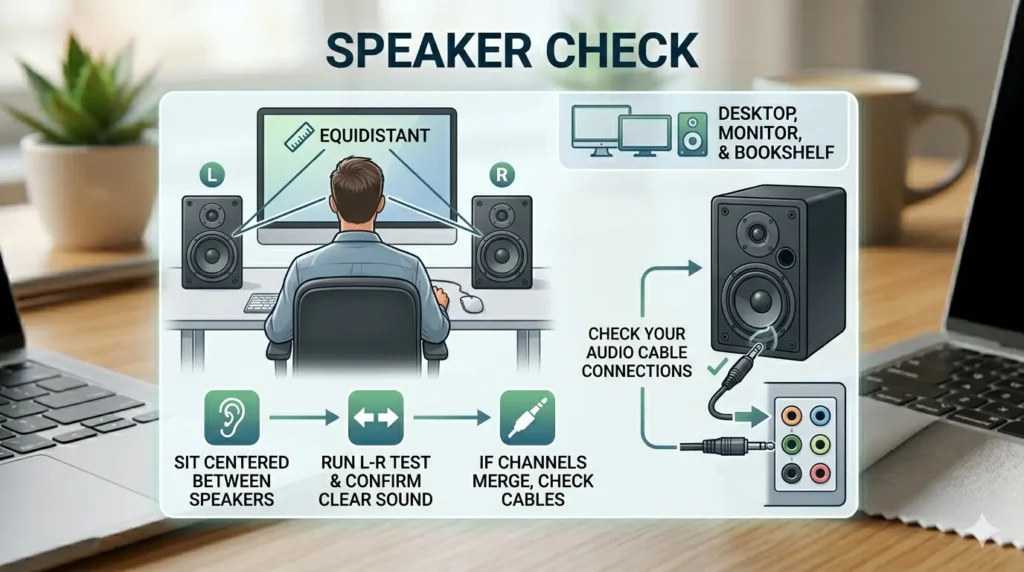
Desktop speakers, monitor speakers, and bookshelf speakers are the easiest to test. Sit centered between your two speakers at the same distance from each. Run the left-right audio test and confirm sound comes clearly from the correct side. If both channels play from one speaker, check your audio cable connections at the back of the speaker or your computer.
Headphone Check
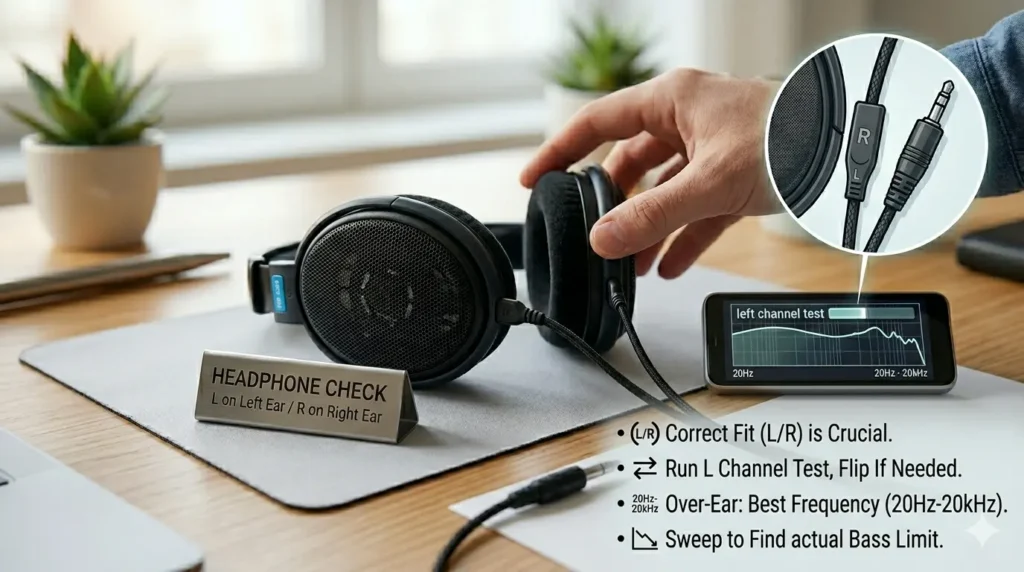
Headphones give the most accurate left-right separation because each ear hears only its own channel. Before performing audio test, make sure you are wearing them correctly — L on the left ear, R on the right. Run the left channel test first. If you hear it in your right ear, flip them around or check for a reversed cable connection.
Over-ear headphones typically give the best frequency response (20Hz–20kHz). On-ear and in-ear headphones vary widely. Use the frequency sweep to find your headphones’ actual bass limit — most budget earbuds drop off sharply below 80-100Hz.
Earbuds Check
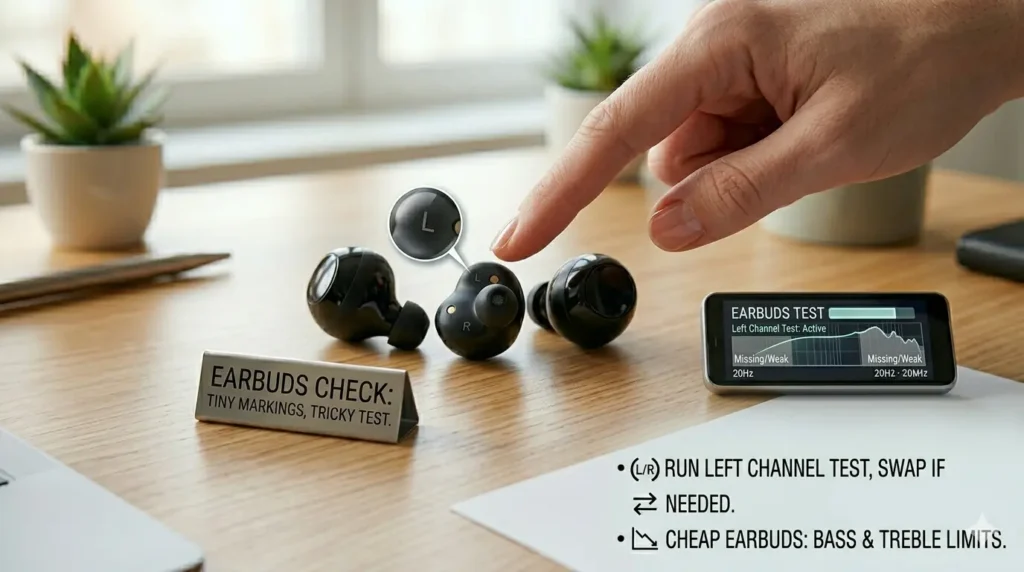
Earbuds are the trickiest to perform audio test because left-right identification markings are often tiny and hard to read. Run the left channel test — if you hear it clearly in your left ear, you are good. If not, swap them. Pay attention during the frequency test too — cheap earbuds often miss both the lowest bass and the highest treble.
Phone Speaker Check
Phone speakers are small and physically close together, so stereo separation feels subtle on built-in speakers. For the most accurate left-right speaker test on a phone, plug in wired earbuds or headphones first. If your phone speaker sounds muffled or distorted, it may have water or dust inside — use our water eject tool at fixmyspeakercleaner.net before running the test again.
Check your phone’s audio balance setting too. On iPhone go to Settings → Accessibility → Audio/Visual and make sure the balance slider is exactly in the center. On Android go to Settings → Sound → Balance and center it there. A small drift to one side is enough to fail a left-right test.
![A professional two-paneled infographic. The left panel shows a smartphone on a grey felt mat with a pair of wired earbuds being plugged in; text instructions include "1. CHECK PHONE SPEAKERS (Subtle Stereo)" and "2. FOR BEST ACCURACY, PLUG IN WIRED HEADPHONES FIRST." The right panel provides troubleshooting steps for distorted audio, featuring a prominent call-to-action button that reads "USE WATER EJECT TOOL at [fixmyspeakercleaner.net]" with a water spray icon. Below the button, text instructions advise to "3. RUN TOOL FIRST" and "4. THEN, RE-RUN THE L/R TEST." Both panels are set against a bright, blurred office background with a wooden desk and a small potted plant.](https://fixmyspeakercleaner.net/wp-content/uploads/2026/05/Gemini_Generated_Image_9cdz2w9cdz2w9cdz-1024x572.webp "Sound Test 5")
Laptop Speaker Check
Laptop speakers sit close together and face downward on most models, which naturally limits stereo imaging. Use the test to check that both channels fire and that neither sounds obviously louder. If you get no sound from one side, update your audio driver — this is the most common cause of one-sided audio on laptops after a system update.
![An infographic illustrating steps for testing and fixing laptop audio issues. The image features a laptop on a wooden desk with illustrative icons and text overlay. The left side, under "LAPTOP SPEAKER CHECK," details steps to test for subtle stereo imaging with a hand using the laptop. The right side, labeled "GET AUDIO FIX and DRIVER UPDATES," lists symptoms like missing sound and provides steps to update audio drivers and re-run tests, with a call to action link: [FixMyLaptopAudio.com]. The background includes plants and office elements.](https://fixmyspeakercleaner.net/wp-content/uploads/2026/05/Gemini_Generated_Image_56qq1856qq1856qq-1024x572.webp "Sound Test 6")
What Is Stereo Sound – And Why It Matters
Stereo sound uses two separate audio channels — left and right — to create the feeling that sound comes from different directions. It adds width, depth, and realism to music, movies, and games. Mono audio plays the same signal from one location and feels flat by comparison.
Mono vs Stereo – What Is the Difference?
Mono collapses everything into one channel. You hear the same sound from both speakers at the same volume. Stereo splits audio into left and right, so a guitar might come from the left and vocals from the center-right. This is why stereo headphones make music feel like you are inside it, not just listening to it.
Most smartphones, laptops, headphones, and earbuds produce stereo sound by default. However, some accessibility settings — like Mono Audio on iPhone — can collapse stereo into mono without you realizing it. This is a common reason why the left-right audio test appears to fail even when your hardware is fine.
The History of Stereophonic Sound
Stereo sound was pioneered by Alan Dower Blumlein in 1931. Before his work, people believed you needed an infinite number of speakers to create realistic sound reproduction. Blumlein proved that just two channels are enough to create the illusion of directionality — because we only have two ears. Every pair of headphones, every set of stereo speakers, and every music recording since then follows his principle.
What Your Results Mean
Sound Only From One Side – What to Do
This is the most common sound test failure. First check the obvious things — is the audio cable fully plugged in? Is the balance slider centered on your device? Is Mono Audio accidentally enabled? Fix those first before assuming hardware damage. If everything checks out and you still only hear one side, the speaker or driver on that side may be physically damaged.
Muffled or Distorted Sound on Both Sides
Muffled sound from both channels usually means something is blocking the speaker physically — dust, debris, or water are the top causes on phones. Run the fixmyspeakercleaner.net tool to push any moisture or dust out. On desktop speakers, check for objects placed too close to the speaker cone that might be vibrating.
No Sound at All – Troubleshooting Steps
If you get zero sound from the tool, work through this in order. Make sure your device volume is turned up. Check that the correct output device is selected in your operating system — your OS might be routing audio to a different device. Confirm your speakers are powered on and connected properly. If you still get nothing, the problem is likely an outdated or corrupted audio driver.
Audio Driver Fix – Last Resort
If every other fix fails, the audio driver is the likely culprit — especially after a Windows or macOS update. Go to your Device Manager (Windows) or System Report (Mac) and check for driver errors under sound devices. Download the latest driver from your sound card manufacturer — Creative, Asus, Focusrite, and Realtek all have driver download pages on their websites.
Echo or Latency During Testing
Echo happens when your microphone picks up the speaker sound and feeds it back. Lower your volume or switch to headphones to eliminate it. Latency — a delay between pressing a button and hearing the tone — is common with Bluetooth devices. Switch to a wired connection for the most accurate test results.
Frequently Asked Questions
Final Word
This Audio test takes less than a minute and tells you everything about your audio setup. Left channel working? Right channel balanced? Frequency range intact? Now you know for certain.
If your speakers passed the Sound test but still sound muffled or distorted in daily use, the issue is likely physical — water, dust, or debris inside the speaker mesh. Head to fixmyspeakercleaner.net and run the free cleaner tool to sort it out in seconds.