Online Microphone Test to Check If Your Mic Is Working
You clicked the button. You spoke. Nothing moved.
That is the moment most people realize they have no idea if their mic actually works. You find out five minutes before a Zoom interview. Or right as your Discord teammates start asking why the channel is silent.
This free microphone test runs in your browser. No download. No account. Nothing recorded. Just click, allow access, and speak.
How to Test Your Microphone Online
Testing your mic here takes under 30 seconds.
Click the Test Mic button
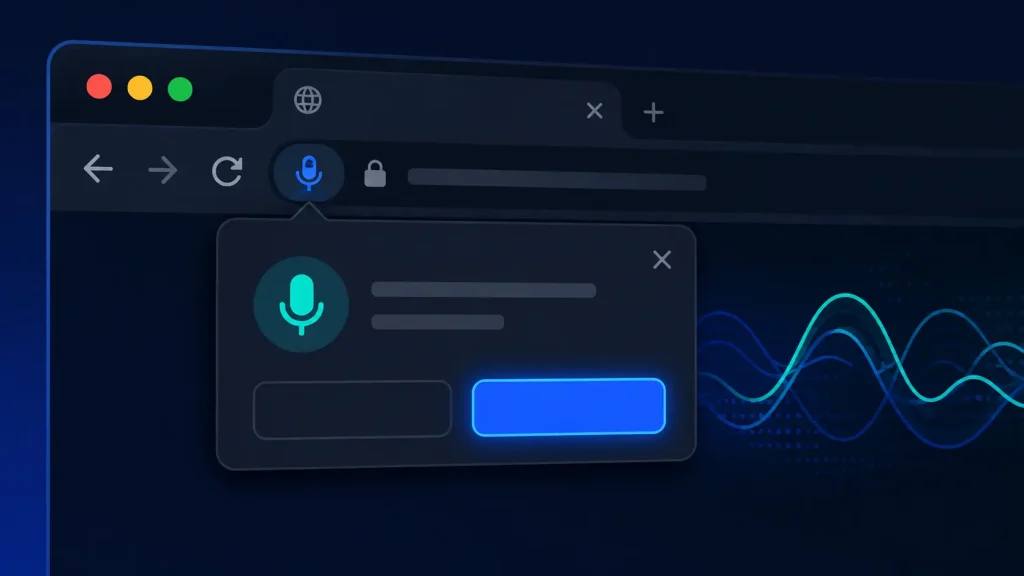
Your browser will ask for microphone permission. This is normal. Nothing happens until you allow it.
Click Allow when the browser asks
On desktop, the permission prompt appears near the top of your browser window. On mobile, it shows up as a system popup. Tap Allow to continue.
Speak normally
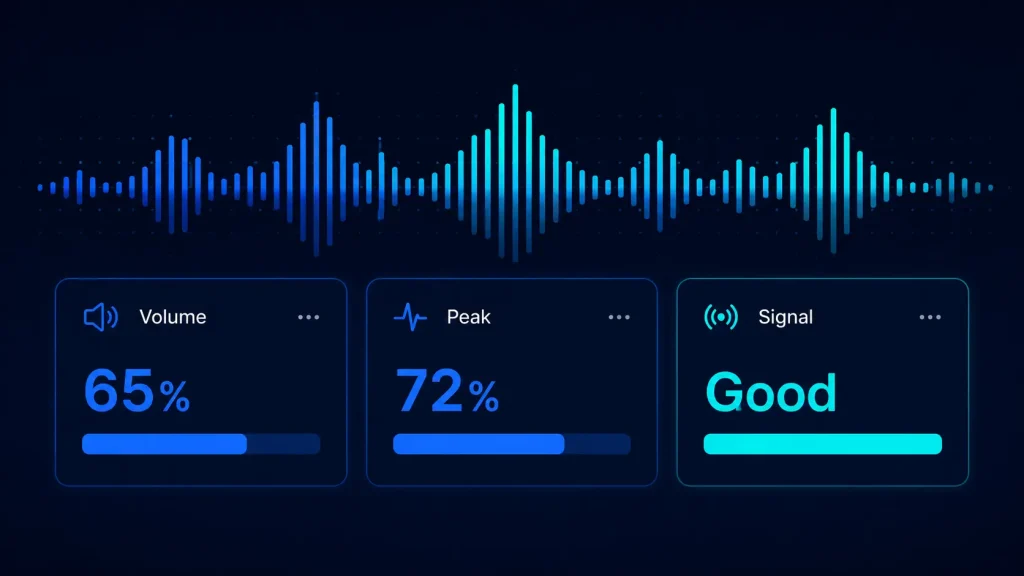
Say something. Count to three. The bars will move if your mic is picking up sound. Watch the Volume, Peak, and Signal readings update in real time. If the bars move, your m
What Does This Mic Test Actually Check?
Most mic test tools just show a moving line and call it done. This one shows you three things in real time.
Volume shows your current mic level as a percentage. A reading between 20% and 70% while speaking at a normal volume is healthy.
Peak tracks the highest level recorded in your session. If Peak stays at 0%, your mic is not sending any signal at all.
Signal classifies what the tool detects. It reads No Signal, Very Low, Good, Strong, or Too Loud. Good and Strong mean your mic is working correctly.
A mic can be connected but still broken. It can be detected but muted. It can be live but picking up almost nothing. These three readings tell you exactly which situation you are in.
Why Test Your Mic in the Browser Instead of an App?
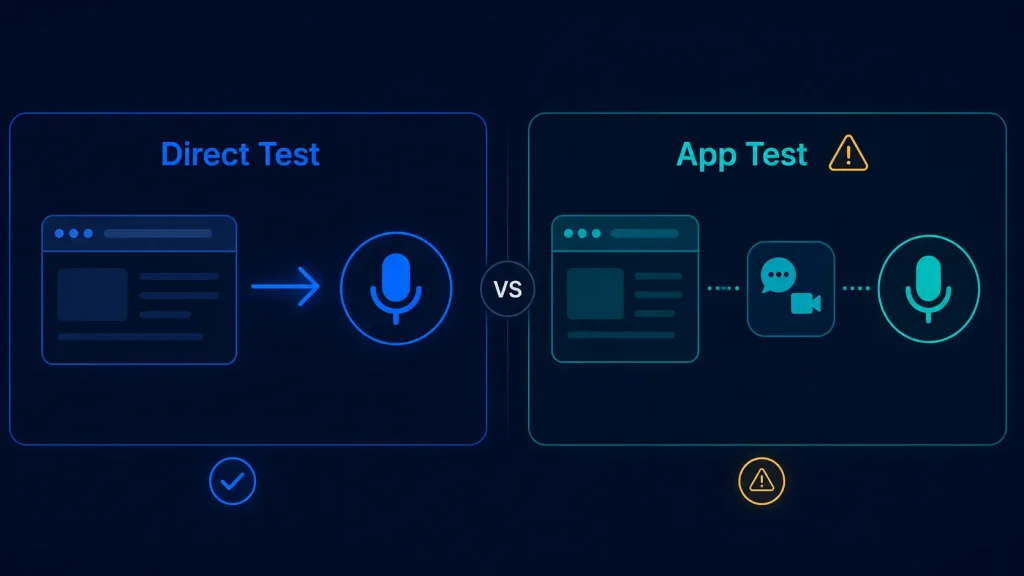
Apps like Zoom, Discord, and Microsoft Teams have built-in mic checks. They are convenient. They are also unreliable for diagnosing problems.
When Zoom says your mic is not working, you cannot tell if the problem is your mic or Zoom itself. The two are mixed together. You are troubleshooting blind.
A browser-based test using the Web Audio API separates the two. Your mic talks directly to your browser. No app in between. If the mic works here, the problem is in your app settings, not your hardware.
This matters when you are 10 minutes from a Google Meet call and someone says they cannot hear you. Run the test here first. If the bars move, your mic is fine. Go fix your app settings. If the bars do not move, the problem is your mic or OS permissions.
Why Is My Microphone Not Working?
Most microphone problems come down to six causes. Start from the top and work down.
No permission given in the browser
Chrome and other browsers block mic access by default until you approve it. If you clicked Block by mistake, go to your browser settings, find this site under Permissions, and change Microphone to Allow. Reload the page and try again.
Wrong input device selected
Your computer may detect three or four microphones at once: the built-in laptop mic, your webcam mic, your headset mic, and a Bluetooth device. The browser often picks the wrong one automatically. Check your system sound settings and confirm the right mic is set as the default input.
Mic is muted or volume is too low
Some headsets have a physical mute button on the cable or ear cup. Check it first. On Windows 11, go to Settings, then System, then Sound, then choose your input device and raise the volume. On macOS, go to System Settings, then Sound, then Input.
Loose cable or bad connection
A USB or 3.5mm plug can feel fully inserted but still make poor contact. Unplug and reconnect firmly. Try a different USB port. If you use an adapter or hub, plug directly into the device instead.
Another app is holding the mic
Only one app can use your microphone at a time on most systems. If Zoom, Discord, OBS, or a voice recorder is already running, your browser cannot access the mic. Close those apps fully, not just minimize them. Then reload this page.
Windows 11 or macOS permission is blocked at OS level
On Windows 11: Go to Settings, then Privacy and Security, then Microphone. Make sure Microphone access is turned On and your browser is listed and enabled.
On macOS: Go to System Settings, then Privacy and Security, then Microphone. Find your browser and make sure it is checked.
My Mic Passes the Test But Nobody Can Hear Me
Your mic works here. Bars moved. Signal says Good. But you join a Zoom call and teammates hear nothing.
The mic is not the problem. The issue is almost always inside the app.
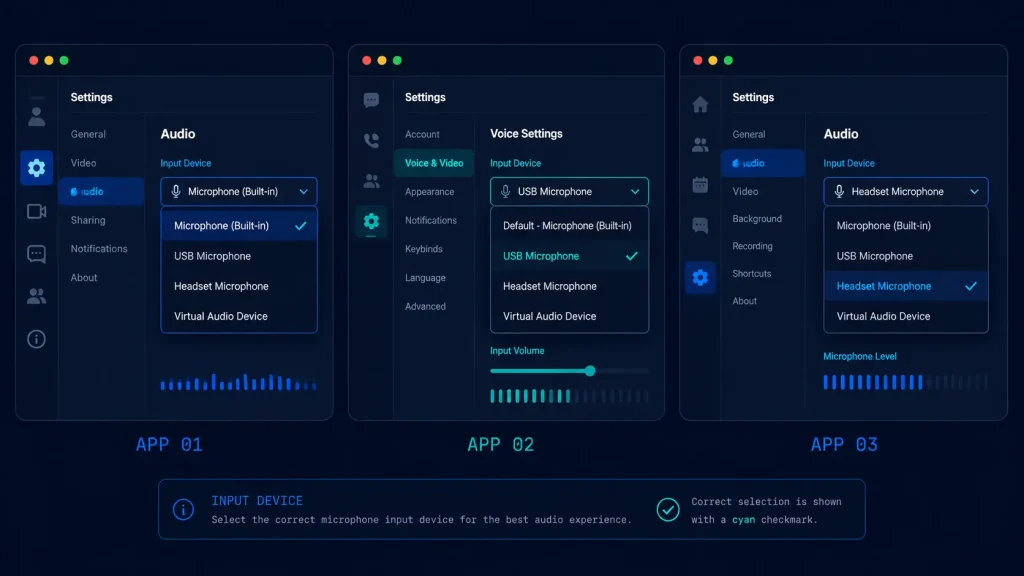
The app selected the wrong microphone
Zoom and Discord remember the last mic you used. If you recently switched headsets, the app is still pointed at the old device. Go into the app audio settings and manually select the correct input.
Zoom: Settings, then Audio, then find the Microphone dropdown. Discord: User Settings, then Voice and Video, then Input Device. Microsoft Teams: Settings, then Devices, then Microphone. Google Meet: Three dots during a call, then Settings, then Audio.
The app does not have OS-level microphone permission
Your browser having permission does not mean Zoom or Discord has permission. Each app needs separate approval from the operating system.
Windows 11: Settings, then Privacy and Security, then Microphone. Enable each app individually. macOS: System Settings, then Privacy and Security, then Microphone. Check each app you want to allow.
Push to Talk is on in Discord
If Discord is set to Push to Talk with no keybind set, you will never transmit. Go to Voice and Video settings and switch to Voice Activity instead.
Testing Specific Devices
AirPods Mic Not Working? Start Here
Connect your AirPods first. Make sure they are set as the active audio device in your system sound settings. Then run the mic test and speak. If the signal is very low, go to your system input settings and manually select AirPods as the input device. AirPods switch routing automatically and sometimes fall back to the built-in laptop mic.
Bluetooth Headset Mic Setup and Testing
Pair and connect your Bluetooth headset before opening the test. On Windows, make sure the headset connects in Hands-Free mode, not Stereo mode. Only Hands-Free activates the microphone. Go to Sound settings, find the Bluetooth device, and switch the profile if needed.
Gaming Headset Microphone — What to Check First
Check the mute switch on the cable or ear cup first. Plug directly into your PC audio jacks, not a hub. Speak into the boom mic from about 2 to 3 inches away. If bars barely move, confirm the headset mic is set as the default input device.
USB Microphone Not Detected? Fix It in 60 Seconds
Plug into a direct port, not a USB hub. Hubs can drop the connection and make the mic disappear from your device list. Select the USB mic explicitly in your system sound input settings. Speak at 6 to 8 inches from the mic.
Testing Your Laptop’s Built-in Microphone
Face the front of the laptop. The mic is usually near the webcam or along the top bezel. Speak at a normal volume and watch the bars. If signal is very low, check that no other app is using the mic and your OS input volume is above 70%.
Is Your Webcam Mic Actually Picking Up Sound?
Select the webcam as your input device in sound settings before running the test. Webcam mics pick up sound from the front. Position the webcam at eye level facing you. If signal is poor, confirm no app has exclusive mic access.
How to Get Better Sound from Your Mic
Your mic passing the test does not mean you sound good on calls. Here is how to go from working to sounding clear.
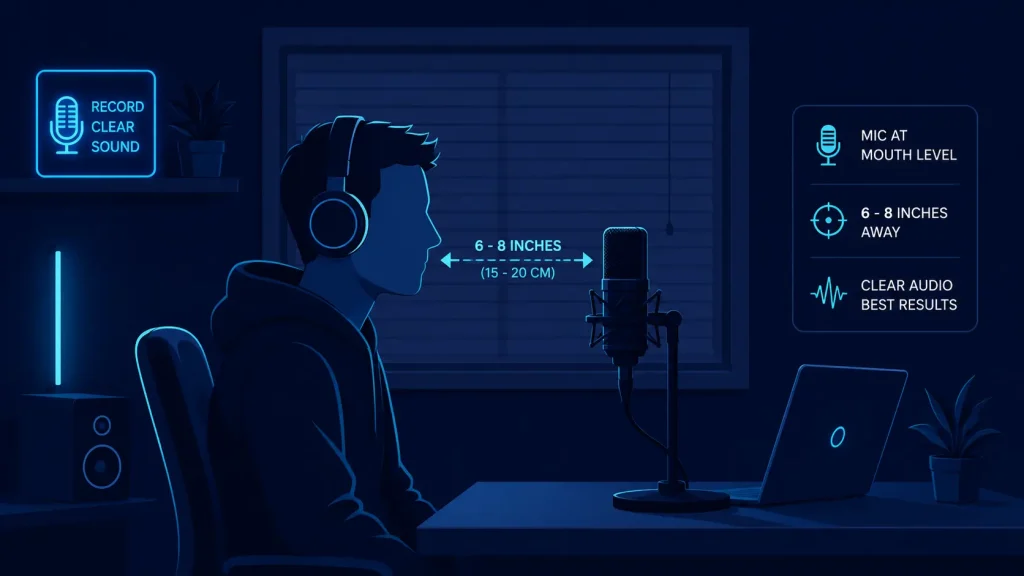
Position the mic correctly
Keep any external mic 6 to 8 inches from your mouth. Too close and you hear every breath and pop. Too far and you sound distant. For a laptop mic, sit directly in front of the screen.
Reduce background noise
Close windows. Turn off fans. Move away from air conditioning vents. Run the test again after each change and watch if the Signal reading improves.
Fix room echo
Hard walls reflect your voice back into the mic. A thick blanket hung behind you removes most echo. Recording inside a wardrobe works well. Cushions around your desk also help.
Set your input volume correctly
Keep your system input volume between 70% and 85%. Higher than that and you pick up hiss. Lower than that and people struggle to hear you. Run the test at different input levels and compare the Volume reading.
Use headphones on calls
Speakers during a call let your mic pick up the other person’s voice and feed it back as echo. Headphones fix this completely. Even a basic wired pair makes a real difference.
Frequently Asked Questions
Also Check Your Speakers
A microphone test tells you about your input. If the other person cannot hear you, that is a mic issue. But if you cannot hear them, that is an output issue.
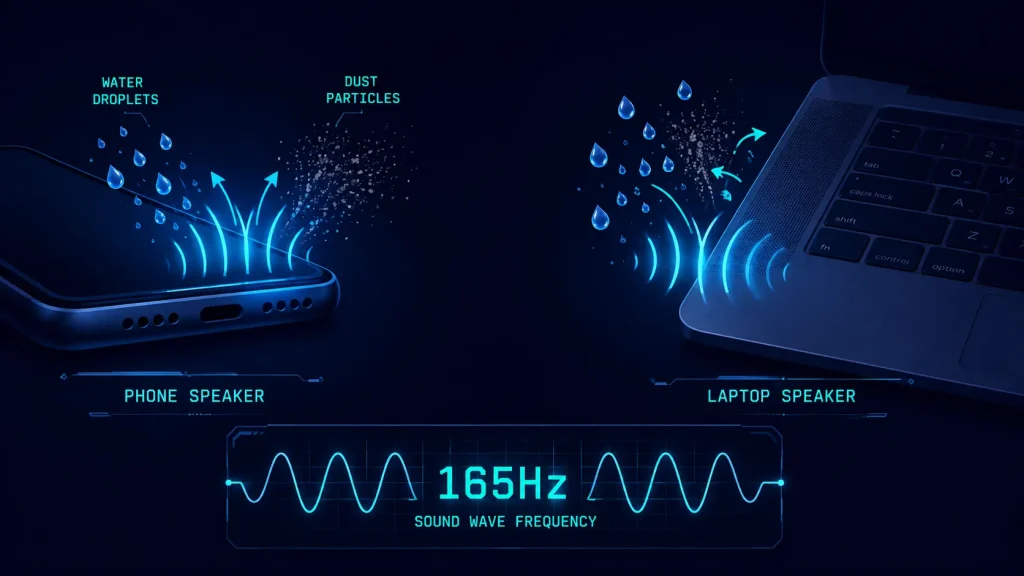
Your speakers could be muffled, blocked with water or dust, or set to the wrong output device. Our speaker cleaner tool uses 165Hz sound frequency to clear blocked speakers. It takes 30 seconds and works directly in your browser.
If you are having any audio problems, start here with the mic test. Then check your speakers if the issue is on the output side.