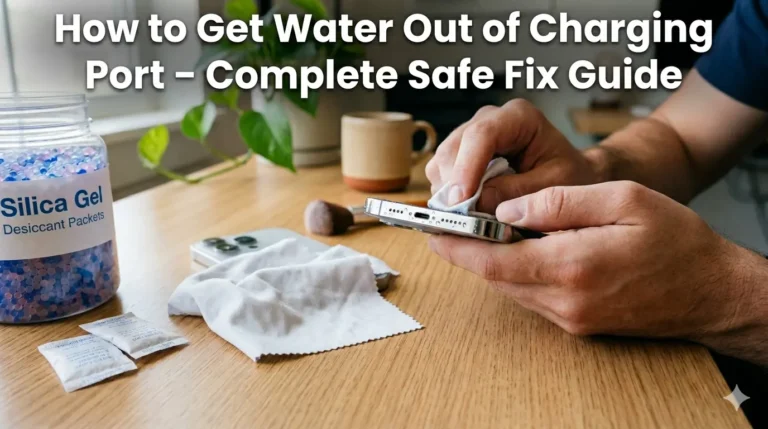
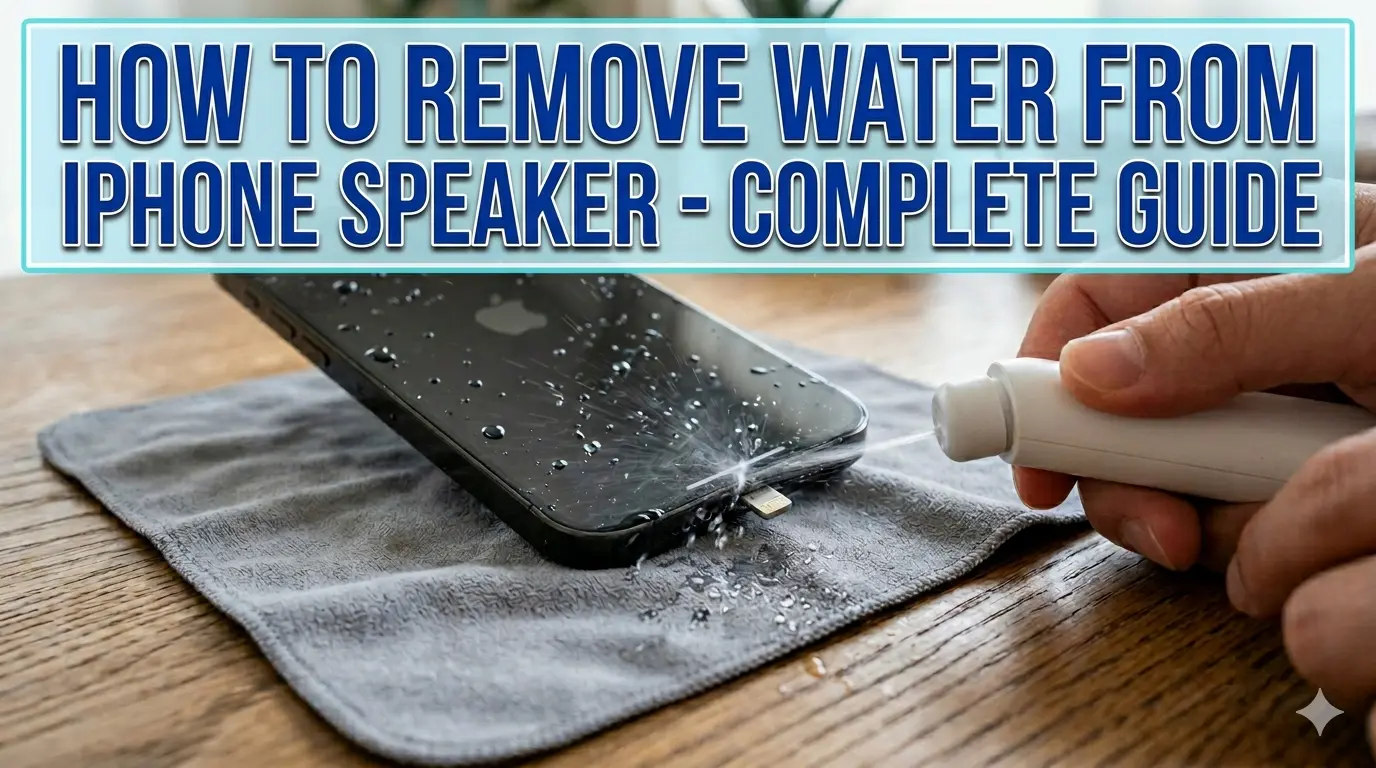
A wet iPhone rests on a gray microfiber cloth on a wooden table. Large, bold blue text at the top reads "HOW TO REMOVE WATER FROM IPHONE SPEAKER - COMPLETE GUIDE." A hand is shown using a small electronic air duster to blow moisture away from the speaker and charging port area.

How to Remove Water from iPhone Speaker – Complete Guide

You just dropped your iPhone in water. Your heart skips a beat. You pick it up fast β€” but now the speaker sounds muffled, like someone stuffed cotton inside it. Sound familiar?

The good news is this happens to thousands of iPhone users every day. And in most cases, you can fix it yourself in minutes. This guide will show you exactly how to remove water from your iPhone speaker β€” using free tools, simple tricks, and zero technical skills.

Is Your iPhone Waterproof or Just Water Resistant?

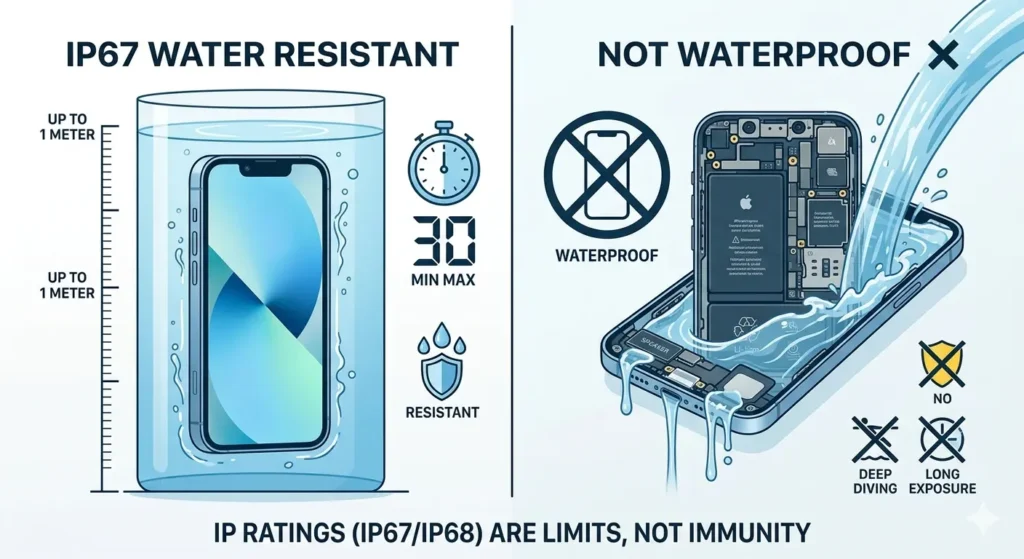
Here is something most people get wrong β€” iPhones are not waterproof. They are water resistant. That is a big difference.

Apple rates newer iPhones with IP67 or IP68 ratings. IP67 means your phone can survive up to 1 meter of water for 30 minutes. IP68 means it can handle up to 6 meters for 30 minutes β€” depending on the model.

A split-screen infographic comparing water resistance versus waterproofing for iPhones. The left side, titled 'IP67 WATER RESISTANT', shows an iPhone in a 1-meter cylinder of water, with an icon indicating a maximum of 30 minutes. The right side, titled 'NOT WATERPROOF', displays an open iPhone cross-section flooded with water, with 'X' icons indicating that deep diving and long exposure are not allowed. The entire illustration is a dynamic infographic with minimal text to explain the difference. Both panels share a clean, digital style with blue, white, and a single accent color for warnings.

What IP67 and IP68 Actually Mean for Your iPhone?

The “IP” stands for Ingress Protection. The second number (7 or 8) tells you how deep and how long the device can handle submersion. But these ratings are tested in still, clean water β€” not a pool with chlorine or a sink full of soapy water.

Which iPhone Models Are Water Resistant?

iPhone 7 and later models have water resistance ratings. The iPhone 15 Pro and Pro Max carry an IP68 rating at up to 6 meters. Older models like iPhone 6s and below have no official water resistance at all.

Why Does Water Get Trapped in iPhone Speaker?

Water does not just sit on the surface of your iPhone. It gets pulled inside tiny openings by pressure and gravity.

How Water Enters the Speaker Mesh?

Your iPhone speaker is covered by a thin mesh grille. This mesh keeps dust out β€” but it also traps water droplets inside. Once water is in, the mesh makes it harder to drain out naturally.
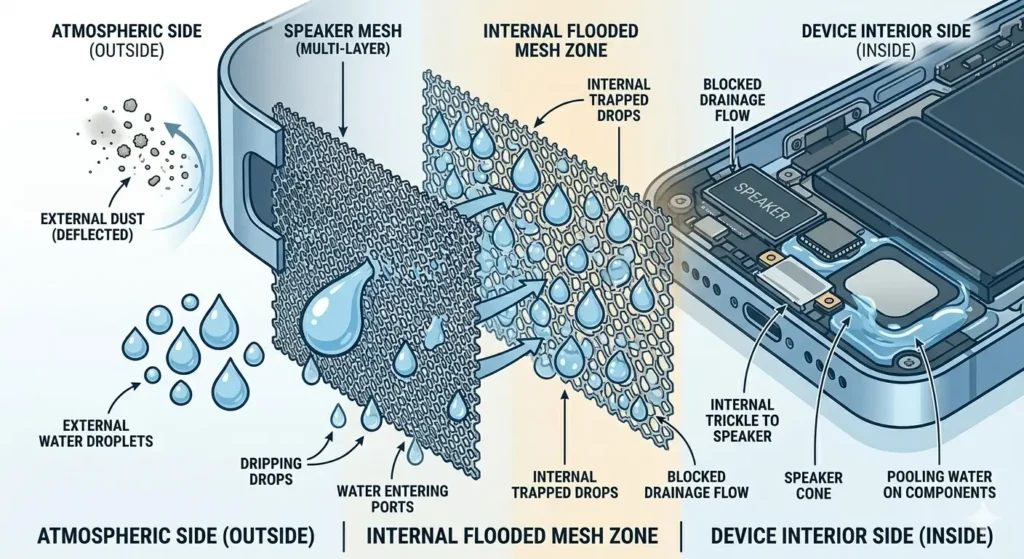
A technical infographic illustrating how water enters an iPhone speaker. The image is divided into three sections: 'ATMOSPHERIC SIDE (OUTSIDE)' showing dust being deflected while water droplets enter; 'INTERNAL FLOODED MESH ZONE' detailing trapped water within the multi-layer mesh; and 'DEVICE INTERIOR SIDE (INSIDE)' featuring a clear cross-section of the phone's internal components with water pooling around the speaker cone and logic board. Text annotations define each zone and the flow of water.

Bottom Speaker vs Ear Speaker – Which Is More Vulnerable?

The bottom speaker is more vulnerable. It faces downward when you hold your phone normally, and it sits right next to the charging port β€” another water entry point. The ear speaker at the top is smaller and slightly more protected by position.
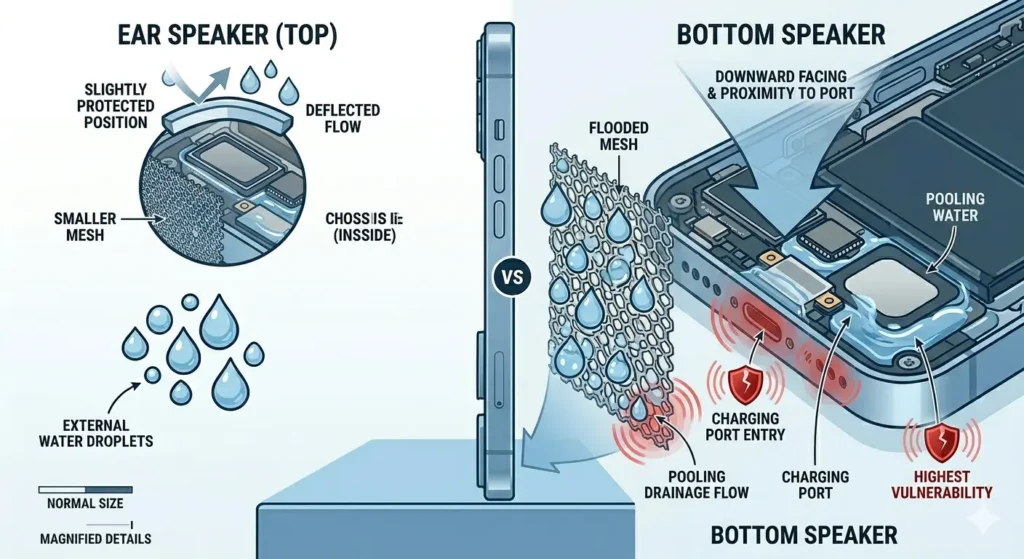
A comparative infographic detailing water vulnerability between an iPhone's two speakers. On the left, the smaller "EAR SPEAKER (TOP)" cross-section shows a "SLIGHTLY PROTECTED POSITION" with minimal internal water. On the right, the large, open cross-section of the "BOTTOM SPEAKER" and logic board reveals heavy internal water pooling, a "FLOODED MESH," and water flooding the "CHARGING PORT." Large red icons and text with arrows definitively label the entire bottom area as having "HIGHEST VULNERABILITY." Minimal text labels make the visual comparison clear and informative.

Signs Water Is Stuck in Your iPhone Speaker?

Not sure if water is the problem? Look for these signs. Your speaker sounds muffled or distorted during calls. Music sounds like it is playing through a wet cloth. The volume seems lower than usual even at full blast. You might even see tiny water droplets behind the speaker mesh when you look closely.
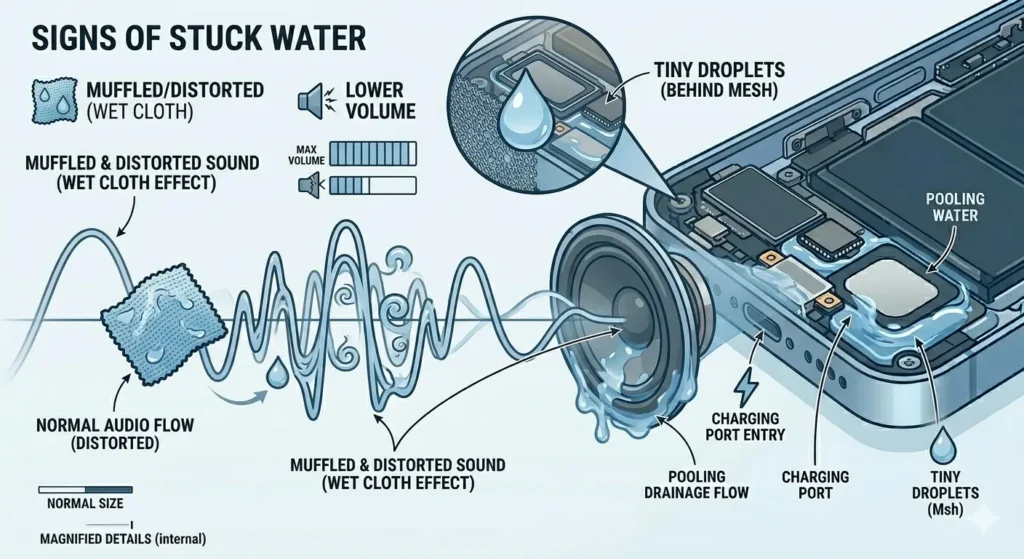
A comprehensive technical infographic illustrating the visual signs and audio effects of water trapped in an iPhone speaker. The image features a detailed cross-section of an iPhone showing water pooling on internal components, and magnified views of water droplets behind the speaker mesh and entering the charging port. A visual sound wave diagram is distorted by wet cloth icons to represent 'muffled and distorted sound (wet cloth effect)', alongside icons for 'Lower Volume' and comparative scale bars, all with clear text labels and arrows.

How to Remove Water from iPhone Speaker – All Methods

Let us get to the actual fixes. Try them in order β€” start with the fastest ones first.

165Hz Sound Frequency Tool (Fastest Fix)

This is the quickest way to remove water from iPhone speaker. A specific low-frequency sound vibrates the speaker membrane and physically pushes water droplets out.

How to Use Fix My Speaker- Step by Step

Go to fixmyspeakercleaner.net on your iPhone browser. Tap the water drop button. Hold your iPhone with the speaker facing down. Let it run for 30 to 60 seconds. You will actually see tiny water drops come out as it runs.
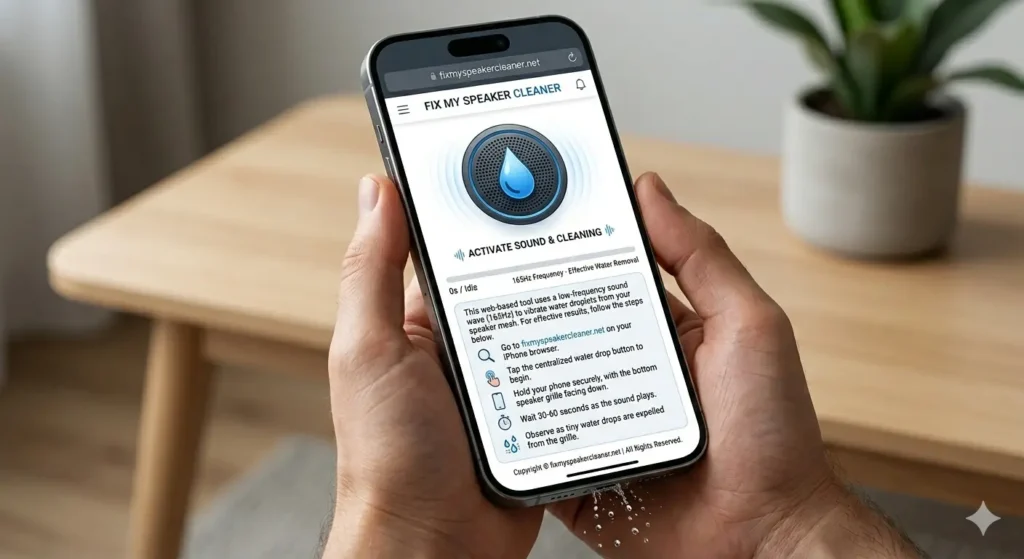
A close-up photograph of a person holding an iPhone displaying the 'FIX MY SPEAKER CLEANER' web interface. The screen shows a '165Hz Frequency' tool and a detailed 'Step-by-step Guide' with icons. Clear text instructions describe going to fixmyspeakercleaner.net, tapping the centralized water drop button, holding the phone with the bottom speaker facing down, waiting 30-60 seconds, and observing water drops. Small water droplets are actively being expelled from the physical speaker grille at the bottom of the iPhone into a hand. The phone is held against a blurred background with a light wood table and a potted plant.

iPhone Water Eject Shortcut (Free)

Apple’s Shortcuts app lets you run a built-in water eject function. It works similarly β€” it plays a specific tone that vibrates water out of the speaker grille.

How to Set Up Water Eject Shortcut

Open the Shortcuts app on your iPhone. Tap the + button to add a new shortcut. Search for “Water Eject” in the action list. Add it and save it with a name you will remember.
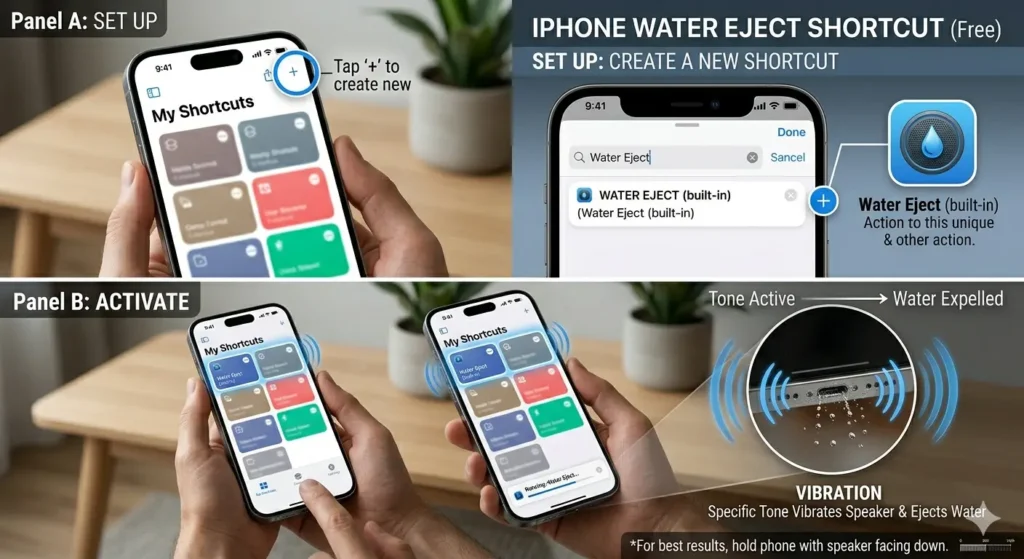
A two-panel infographic showing how to use the built-in iPhone Water Eject shortcut. 'Panel A: SET UP' shows the My Shortcuts app with text pointing to the '+' button to 'create new,' and another iPhone screen with 'Water Eject (built-in)' found in the action list, showing its unique water drop icon. 'Panel B: ACTIVATE' shows an iPhone being held and a finger about to tap the saved Water Eject shortcut, with concentric blue wave icons radiating from the phone. A circular magnification detail zooms in on the phone's physical speaker grille with tiny water drops visibly vibrating and flying out. Large text annotations explain 'Tone Active -> Water Expelled' and 'Specific Tone Vibrates Speaker & Ejects Water.' A final bottom banner advises 'For best results, hold phone with speaker facing down.' and features a scale bar for size reference. The overall style is a clean, modern infographic

How to Add Water Eject to iPhone Home Screen

After saving, tap the three dots on the shortcut. Tap Add to Home Screen. Now you have a one-tap button ready for next time.
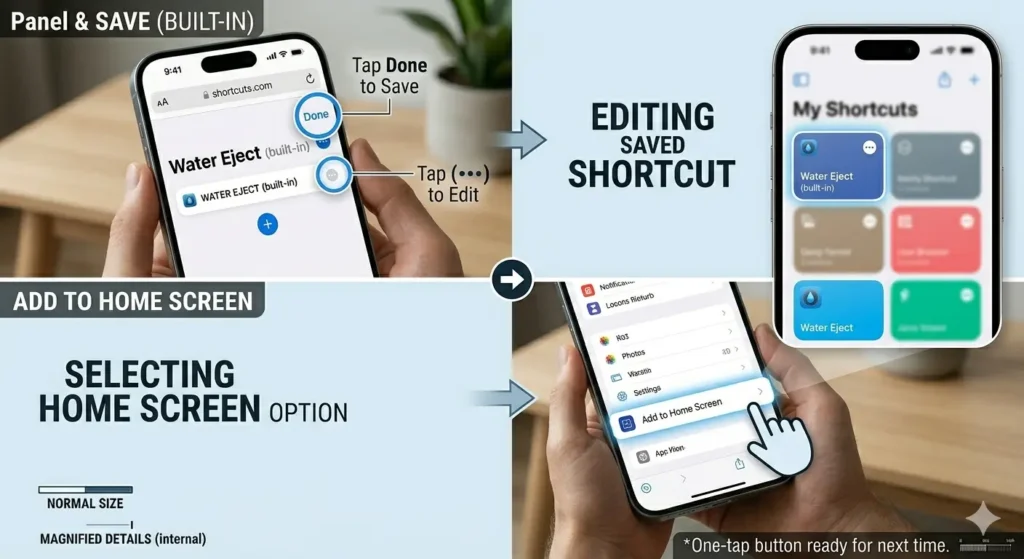
A four-part instructional infographic showing how to add a Water Eject shortcut to an iPhone home screen. The top-left panel shows the 'Panel & SAVE' screen where a user taps 'Done' or the 'three dots' to edit. The top-right circular magnification shows the shortcut saved within the 'My Shortcuts' app. The bottom-left panel illustrates the user selecting the 'Add to Home Screen' option from a menu. The final bottom-right panel displays the iPhone home screen with the 'Water Eject' icon successfully added as a one-tap button, labeled 'Home Screen with Added Button'. The image includes helpful text annotations and a footer stating, 'One-tap button ready for next time.

How to Run Water Eject Using Siri

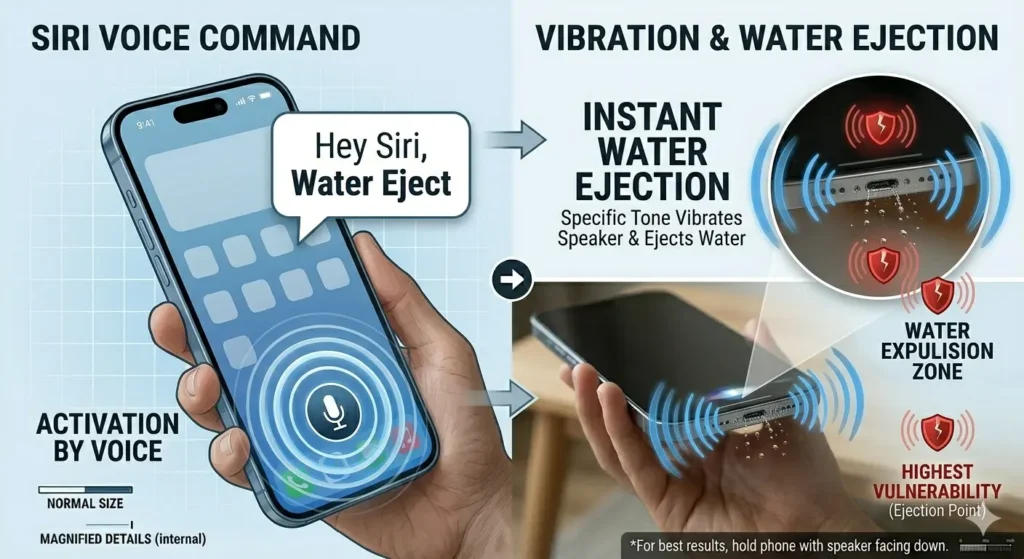
Just say “Hey Siri, Water Eject” if you have set up the shortcut already. It runs instantly Ò€” no screen tapping needed.

A dual-panel infographic demonstrating hands-free water removal from an iPhone. On the left, titled 'SIRI VOICE COMMAND,' a hand holds an iPhone with a voice activation ripple on the screen and a speech bubble saying 'Hey Siri, Water Eject.' An arrow points to the right panel, 'VIBRATION & WATER EJECTION,' showing the iPhone being held with the speaker grille facing downward. Blue vibration waves and red vulnerability icons highlight the 'WATER EXPULSION ZONE' as tiny droplets are physically expelled from the bottom speaker. A magnified circular view provides a close-up of the water leaving the grille. A footer at the bottom includes the tip: 'For best results, hold phone with speaker facing down.

Gravity Drainage (Do This First)

This sounds almost too simple, but it works. Turn your iPhone upside down with the speaker facing the floor. Give it a gentle tap on the back with your palm. Let gravity pull the water out. Do this for 30 seconds before trying anything else.
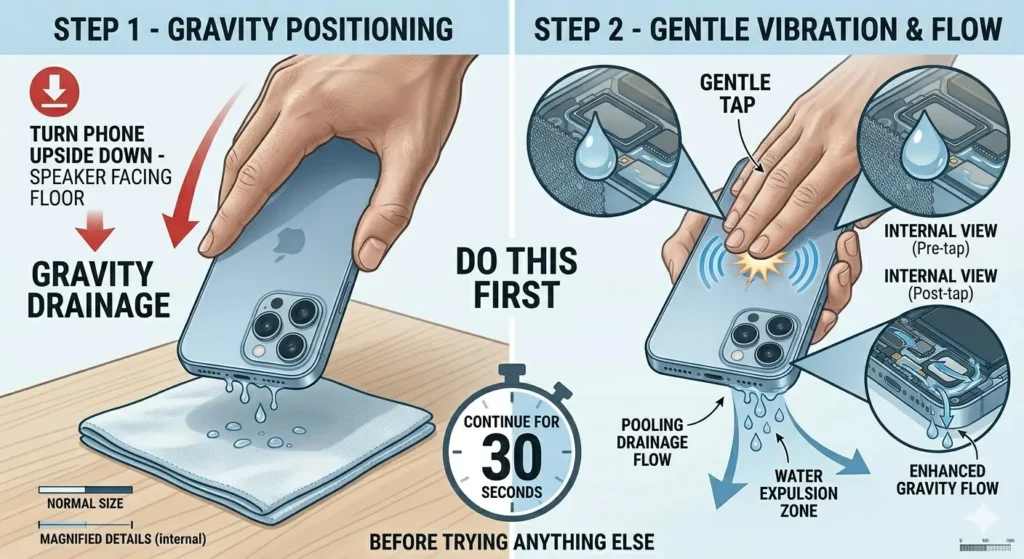
A two-panel instructional infographic showing the gravity drainage method for a wet iPhone. 'STEP 1 - GRAVITY POSITIONING' shows a hand holding an iPhone upside down over a cloth, with arrows indicating water dripping from the speaker grille. 'STEP 2 - GENTLE VIBRATION & FLOW' shows the same hand giving the back of the phone a 'gentle tap,' with magnified internal views showing water moving from 'Pre-tap' pooling to 'Post-tap' expulsion. A 30-second timer icon in the center is labeled 'DO THIS FIRST' and 'CONTINUE FOR 30 SECONDS,' with a footer stating, 'BEFORE TRYING ANYTHING ELSE.

Use a Vacuum (Low Suction Only)

A vacuum can suck water out of the speaker mesh. Use the lowest suction setting available. Hold the nozzle near β€” not directly on β€” the speaker grille. High suction can damage the speaker membrane, so keep it gentle.
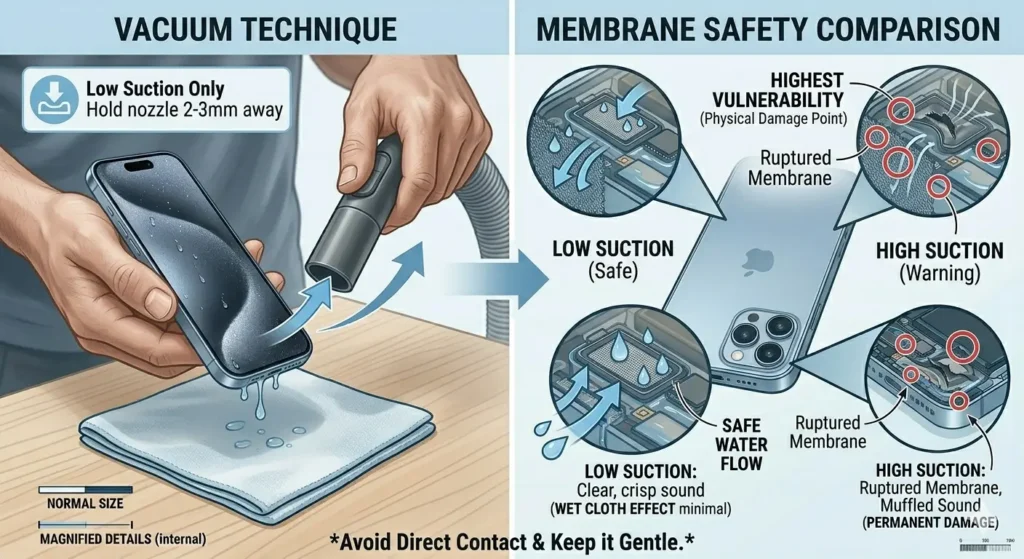
A two-panel visual guide showing the correct and incorrect ways to use a vacuum for phone speaker cleaning. The left panel shows a person holding a vacuum nozzle a few millimeters away from an iPhone's bottom speaker while water droplets are pulled out onto a cloth. The right panel features several circular magnified diagrams of the phone's internal components. These diagrams use icons and arrows to illustrate safe moisture removal versus the physical damage and ruptured membranes caused by high suction. A large 'no' symbol and a low-suction icon are displayed at the bottom to emphasize safety precautions

Compressed Air (Use With Caution)

Short, gentle bursts of compressed air can push water out. Hold the can at least 2 inches away from the speaker. Never blow air directly into the charging port Ò€” it can push water deeper inside instead of removing it.
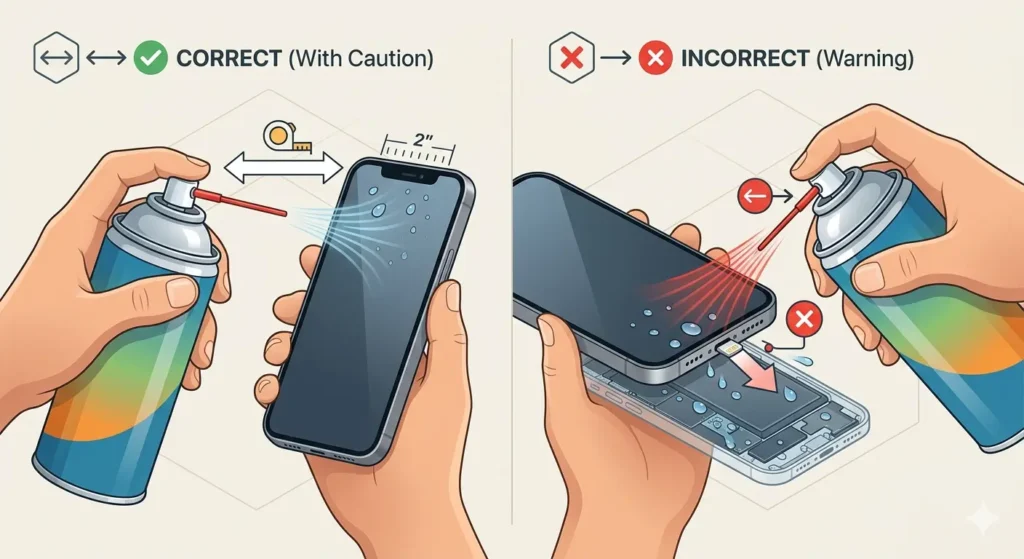
A detailed comparison infographic split vertically, illustrating safe and unsafe methods for using compressed air on an iPhone. The left panel shows a hand holding a compressed air can a safe distance (visualized, no text) from an iPhone with clear, multi-directional blue airflow arrows indicating water expelling externally onto a microfiber cloth. The right panel displays detailed internal schematics of the phone, showing a hand pointing the compressed air directly into the charging port with large red aggressive flow arrows, indicating water being forced deeper into internal components like the circuitry and battery. Magnified insets show internal details: a clear filter (safe flow), a damp filter (internal flow), and a ruptured membrane (physical damage) with associated red warning icons.

Silica Gel for Deep Moisture

Already tried the sound methods but speaker still sounds off? Put your iPhone in a sealed bag with a few silica gel packets. Leave it for 24–48 hours. Silica gel absorbs moisture that vibration tools cannot reach.
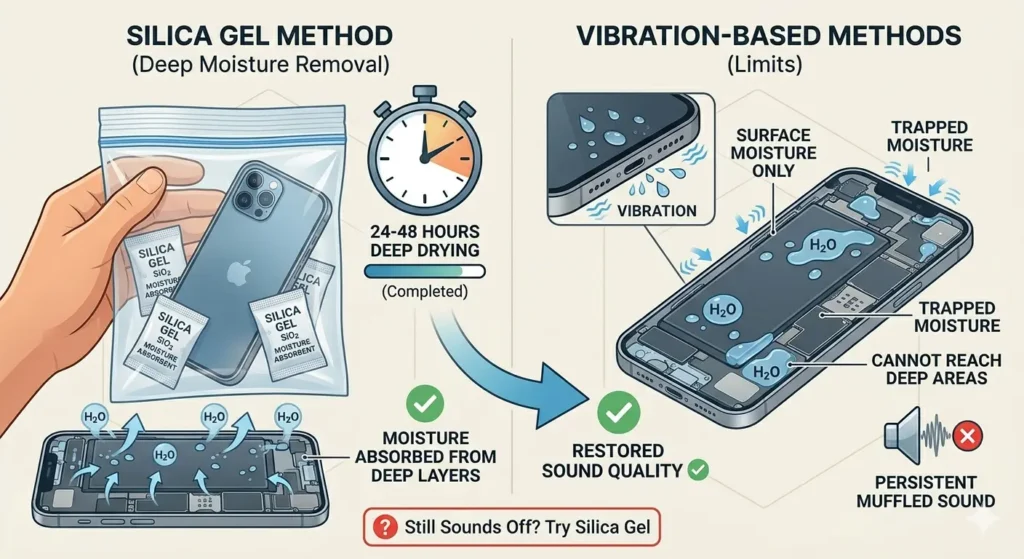
A detailed two-part informational graphic illustrating the deep-drying benefits of silica gel. The left side shows a hand holding a transparent, sealed plastic bag containing a smartphone and several white silica gel packets labeled 'Silica Gel Moisture Absorbent.' Above it, a stopwatch icon indicates a 24 to 48-hour duration. An internal cross-section below the bag shows blue arrows representing moisture being pulled upward out of the phone's internal hardware. The right side of the image illustrates the limitations of vibration-based methods, featuring a schematic of a phone with trapped water droplets labeled 'H2O' in deep areas where sound waves cannot reach, resulting in persistent muffled sound.

How to Remove Water from iPhone Bottom Speaker

The bottom speaker needs extra attention because water tends to pool there. Use the Fix My Speaker tool first with your phone facing downward. Follow it with the silica gel method overnight. The combination of vibration and absorption works best for stubborn bottom speaker cases.

How to Remove Water from iPhone Ear Speaker

The ear speaker is smaller and sits at the top of your screen. Run the Water Eject shortcut with your iPhone held vertically, ear speaker facing up. Then flip it and let gravity help. The ear speaker usually clears faster than the bottom one.
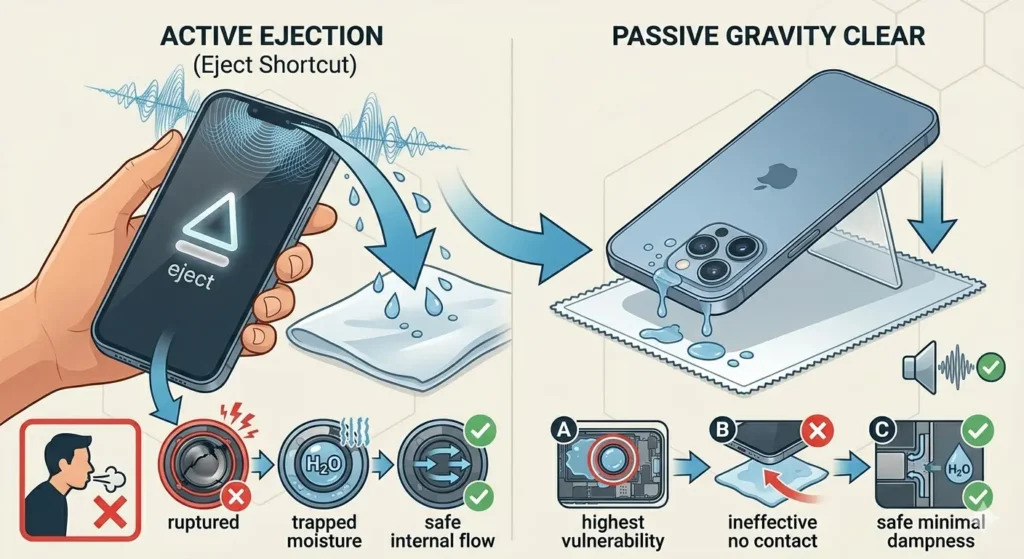
A split-panel technical illustration showing a two-step process for removing water from an iPhone ear speaker. The left panel, labeled 'Active Ejection,' shows a hand holding an iPhone vertically with an 'eject' icon on the screen and sound waves vibrating near the top ear speaker, causing water droplets to fly out. The right panel, labeled 'Passive Gravity Clear,' shows the iPhone flipped and leaning against a small stand on a cloth, allowing remaining water to drain naturally via gravity. Below the main panels, a series of icons compare 'ruptured' membranes and 'trapped moisture' with 'safe internal flow' and 'safe minimal dampness' to emphasize the effectiveness of these methods.

How to Get Water Out of iPhone Charging Port

Do not plug in your iPhone if the charging port is wet β€” this can cause a short circuit. Shake the phone gently with the port facing down first. Then use short bursts of compressed air to help dry it. Your iPhone may show a “Liquid Detected” warning β€” trust it and wait at least an hour before charging.
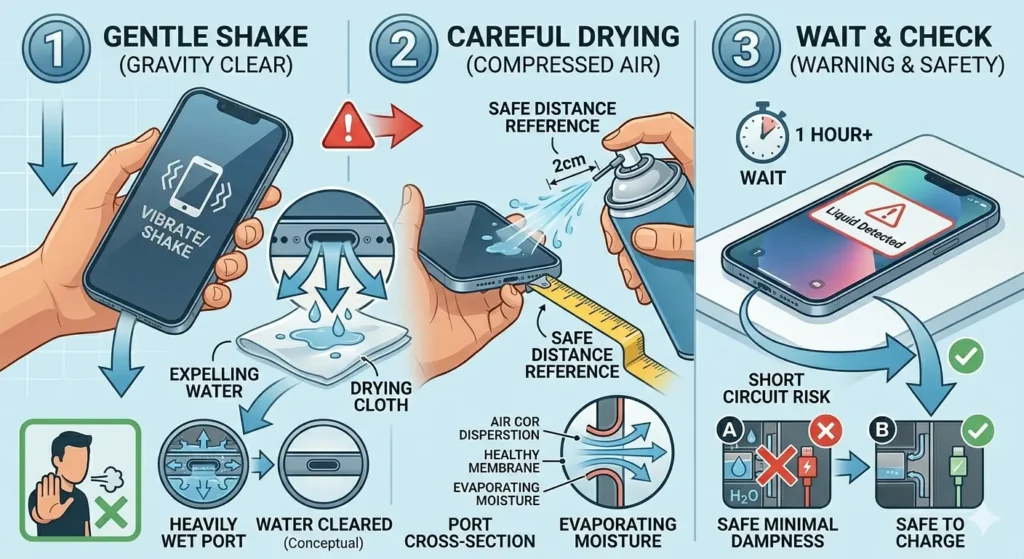
A three-part technical illustration guiding the safe removal of liquid from an iPhone lightning port. Step 1, "Gentle Shake (Gravity Clear)," shows a hand gently shaking an iPhone downwards with the port facing a "drying cloth," expelling large water droplets. A magnified schematic below compares a "heavily wet port" with a "water cleared" (conceptual) state. Step 2, "Careful Drying (Compressed Air)," shows a hand using a can of compressed air with a nozzle 2cm away from the port, as per a "safe distance reference" tape measure. A port cross-section schematic illustrates the compressed air dispersing, allowing internal "evaporating moisture" to exit past a "healthy membrane." Step 3, "Wait & Check (Warning & Safety)," shows the phone with a "Liquid Detected" warning on the screen and a 1-hour "wait" timer. Two comparative icons below show: A. Water deep in the phone with a red 'X' and "Short Circuit Risk" leading to "Safe Minimal Dampness." B. A dry phone with a green checkmark leading to "Safe to Charge." All steps show detailed human hands, phone schematics, and use a consistent light-blue background and color-coded arrows and icons

How to Get Water Out of iPhone Camera

Water in the camera shows up as foggy or blurry photos. Do not use heat β€” it damages the lens coating. Place your iPhone in a dry, airy room and use the silica gel bag method. Give it a few hours before assuming permanent damage.
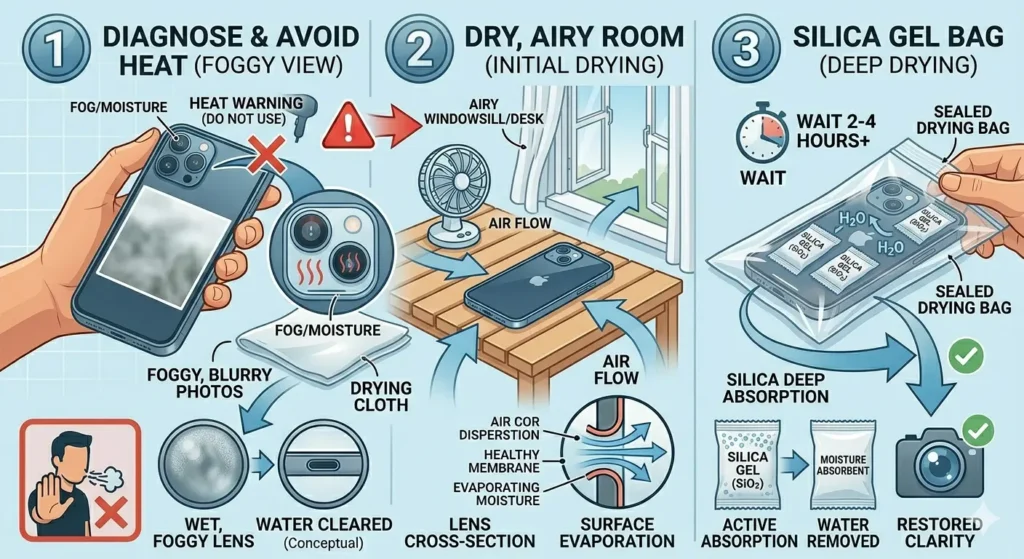
A technical three-panel illustration showing how to remove water from an iPhone camera. Step 1, "Diagnose & Avoid Heat (Foggy View)," shows a hand holding an iPhone with a foggy lens schematic and a red "Heat Warning (Do Not Use)" icon with a crossed-out hairdryer. A magnified comparison below contrasts a detailed "Wet, Foggy Lens" with a clean "Water Cleared" (conceptual) state. Step 2, "Dry, Airy Room (Initial Drying)," depicts the phone on a slatted wooden table by an open window, with a small fan creating "Air Flow" arrows that circulate around the device. Step 3, "Silica Gel Bag (Deep Drying)," shows the phone sealed inside a clear "Sealed Drying Bag" alongside several "Silica Gel (SiO2)" moisture absorbent packets, with "H2O" molecules drawn towards them. The panel features schematics for "Silica Deep Absorption" and contrasts "Active Absorption" with "Water Removed." A "Wait 2-4 Hours+" timer indicates the process duration. Large, color-coded arrows and icons guide the user through the sequential steps. A final icon in the bottom-right corner shows a camera lens with a green checkmark, indicating "Restored Clarity.

What NOT to Do When Water Is in Your iPhone Speaker

Some common “fixes” actually make things worse. Avoid all of these.

Do Not Use a Hair Dryer

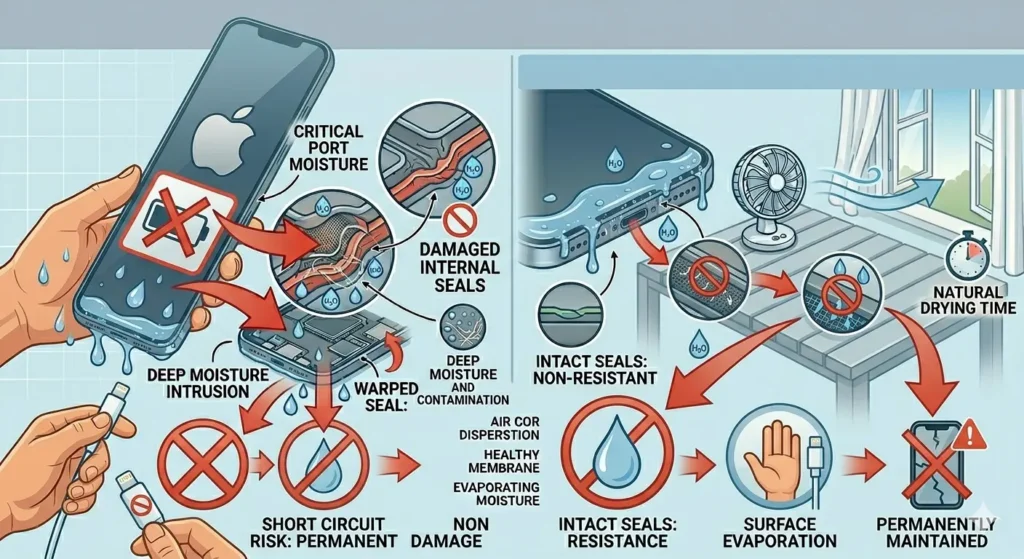
Heat warps the adhesive seals inside your iPhone. Those seals are what keeps it water resistant in the first place. A hair dryer can destroy them permanently.
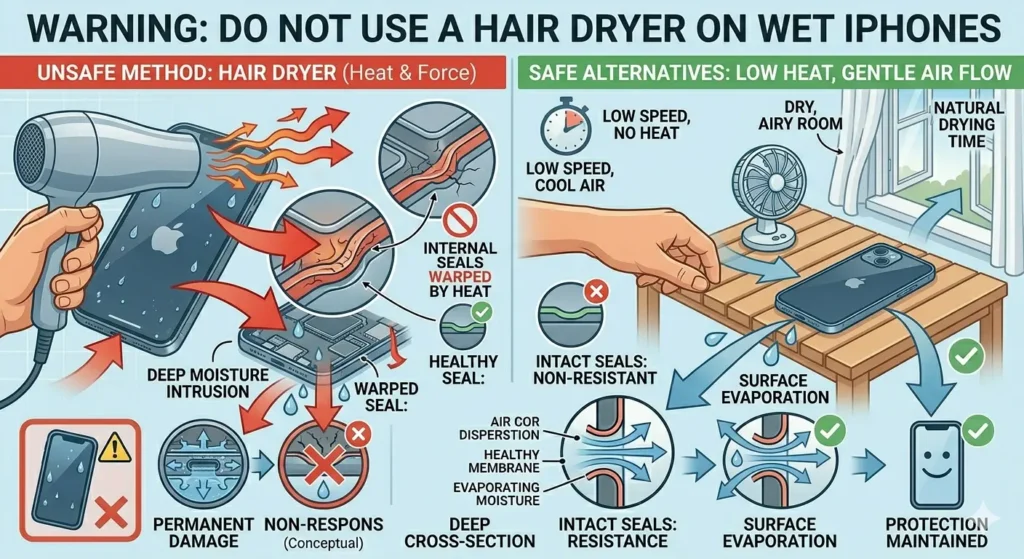
An instructional comparison infographic on a light blue background. On the left, labeled 'UNSAFE METHOD: HAIR DRYER (Heat & Force)', a hand points a hair dryer at a wet iPhone, generating powerful red and orange airflow arrows. Magnified insets and internal cross-sections show 'INTERNAL SEALS WARPED BY HEAT' and 'DEEP MOISTURE INTRUSION', contrasting a buckling seal with a healthy one and illustrating water droplets pushed deep past broken defenses. Below this, an icon of a wet, non-responsive phone with a red 'X' and prohibition icon is labeled 'PERMANENT DAMAGE'. On the right, labeled 'SAFE ALTERNATIVES: LOW HEAT, GENTLE AIR FLOW', a hand gently places a wet iPhone onto a slatted wooden table beside an open window, with soft, cool-blue airflow arrows and small, controlled 'SURFACE EVAPORATION' water droplets. A quiet low-speed desk fan is on the table, and an icon from a timer shows 'NATURAL DRYING TIME'. The same internal cross-section schematic shows 'INTACT SEALS: resistance retained' and 'SAFE MINIMAL DAMPNESS', with smooth seals and water moving outward. Below this, a dry, responsive phone icon with a green checkmark is labeled 'PROTECTION MAINTAINED'. All elements use consistent color-coding, explanatory icons (warped seal red 'X' vs. healthy seal green checkmark), and descriptive vector text

Do Not Insert Cotton Swabs or Toothpicks

These push water deeper into the speaker mesh instead of removing it. They also leave tiny fibers behind that attract more moisture later.
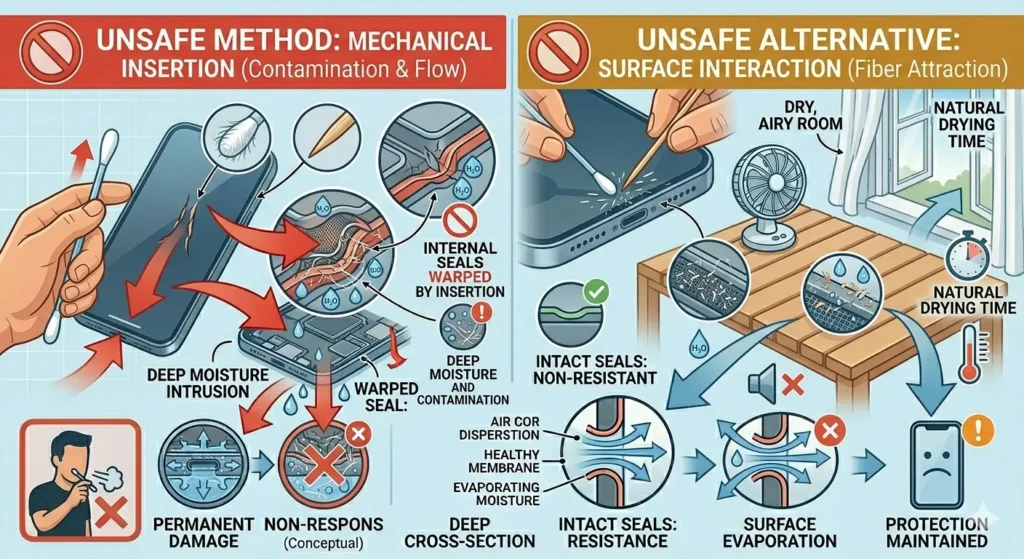
A detailed, two-panel instructional illustratIion), comparing unsafe methods to properly remove water from a smartphone speaker grille. The overall style is clean vector art with soft gradients and precise technical schematics, set against a light background with subtle hexagonal grid lines. Both panels prominently feature large, red prohibition icons

Do Not Charge Your iPhone

Electricity and water are a dangerous combination. Wait until you are completely sure the charging port is dry β€” or see the all-clear message on screen β€” before plugging in.

A detailed diagram contrasting water damage in a smartphone with proper drying. On the left, red arrows and text show critical port moisture, deep intrusion, and short-circuit risk with a crossed-out charging cable. Detailed cross-sections show warped, non-resistant seals and deep contamination. The right side outlines a natural drying method with a fan, open window, and clock. Green arrows and checkmarks indicate intact seals, surface evaporation, and maintained protection with healthy membranes and air dispersion.

Do Not Shake Aggressively

A gentle tap is fine. Shaking your iPhone hard can spread water to other internal components that were previously dry.
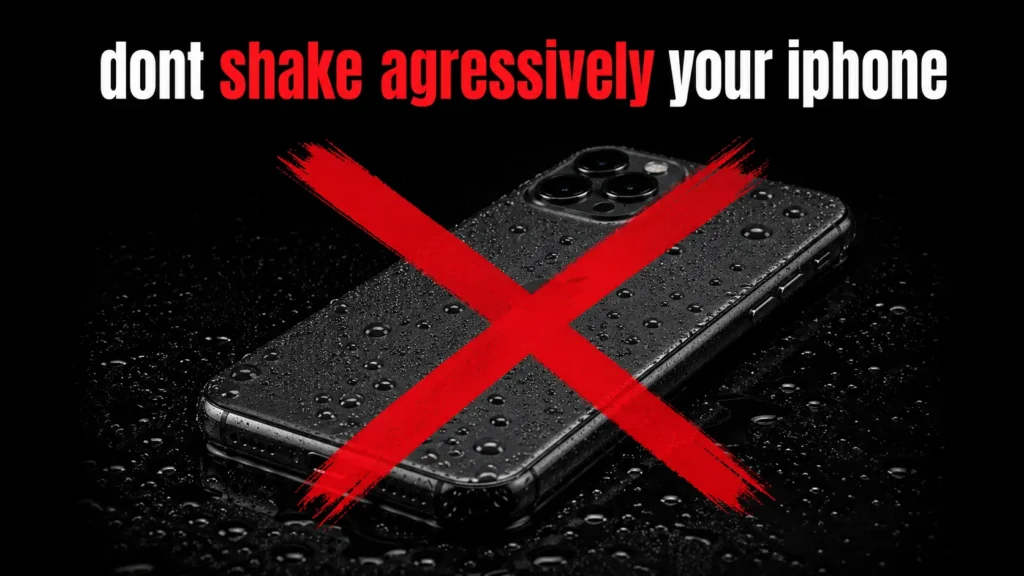
Wet iPhone on a dark background with water droplets, marked with a large red X and warning text saying β€œdon’t shake aggressively your iPhone.”

Do Not Use Rice – Here Is Why

Rice is a myth. It absorbs almost no moisture from electronics in a reasonable timeframe. It also leaves starch dust near your ports and speaker grilles. Skip the rice bowl and use silica gel instead. it absorbs moisture 30 times faster.
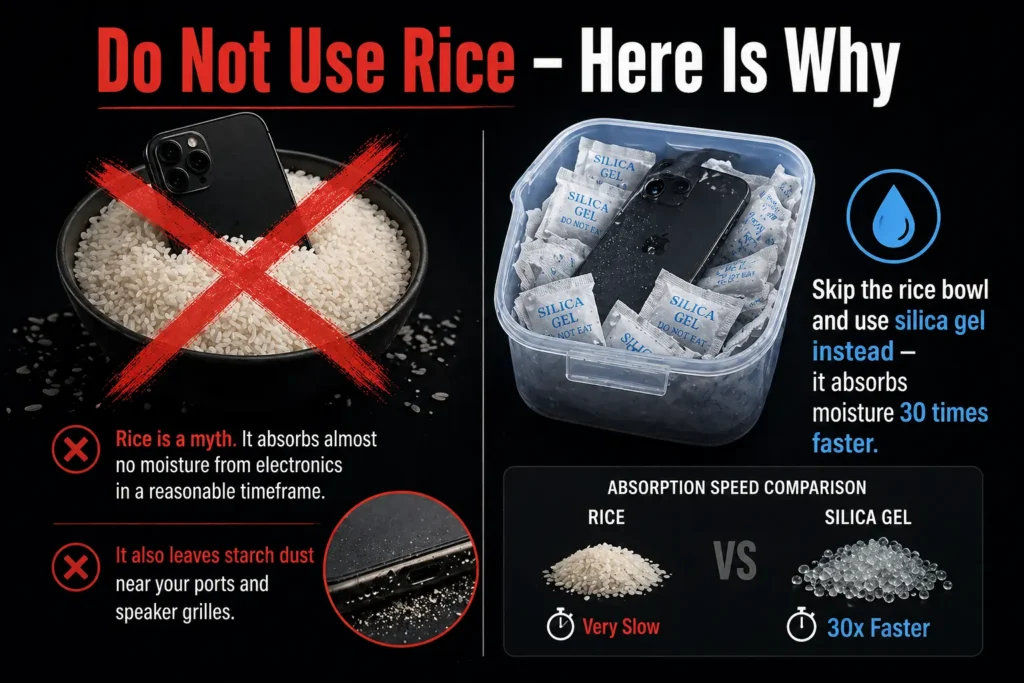
nfographic showing a wet phone placed in rice with a red X, explaining rice is ineffective and leaves dust, compared to silica gel which absorbs moisture 30 times faster.

What If iPhone Speaker Still Sounds Muffled After Water Eject?

Ran the tool multiple times but the speaker still sounds off? Here is what to do next.

Run the Tool More Times

Run Fix My Speaker or the Water Eject shortcut 3 to 5 times in a row. Each pass pushes out a little more moisture. Most people stop too early.


Check for Corrosion

If water sat in your iPhone for more than a few hours, corrosion may have started inside the speaker. Look at the speaker grille under a flashlight. A greenish or white crust around the mesh is a sign of mineral deposits from the water.

Clean Speaker Corrosion with Isopropyl Alcohol

Dip a very soft brush (like a clean toothbrush) in 90%+ isopropyl alcohol. Gently scrub the speaker grille in small circles. The alcohol evaporates quickly and dissolves mineral deposits without leaving moisture behind. Do not use lower concentrations as they contain too much water.

How Long Does Water Stay in iPhone Speaker?

In most cases, water clears from the speaker within a few hours on its own Ò€” especially if your iPhone is left in a warm, dry room with airflow. With the sound frequency tools, it can happen in under a minute. Deep moisture trapped behind the mesh can take up to 24 hours to fully evaporate without help.

Can Water Damage iPhone Speaker Permanently?

Yes, it can do but it is less common than you think. Short exposure to water usually causes temporary muffling. Permanent damage happens when water sits inside for a long time, causing corrosion on the speaker’s internal components. If you act fast, the chances of permanent damage are very low.

Does Water Damage Void iPhone Warranty?

Apple’s standard warranty does not cover water damage. However, AppleCare+ covers accidental liquid damage with a service fee. Check your plan before assuming you are covered.

How to Prevent Water Getting into iPhone Speaker in Future

Use a waterproof case near water. Avoid using your iPhone in the rain without protection. Keep a few silica gel packets in your bag. they are cheap and can save your device in an emergency.

Frequently Asked Questions

Use the Water Eject shortcut in Apple’s Shortcuts app. it is completely free. Or visit fixmyspeakercleaner.net in your browser. Both use sound vibrations to push water out and cost nothing.

Yes. It plays a low-frequency tone that vibrates the speaker membrane and expels water droplets. It is most effective when used within the first few minutes of water exposure.

Yes. It plays a low-frequency tone that vibrates the speaker membrane and expels water droplets. It is most effective when used within the first few minutes of water exposure.

Run it 3 to 5 times for best results. If your speaker still sounds muffled after that, follow up with the silica gel method for 24 hours.

It can – if you leave your iPhone in a dry, airy place. But it may take several hours. Using the sound frequency tool speeds this up significantly.

Fix My Speaker works through your browser and plays audio through your speaker, so it works on any iPhone model that can access the web. No app download needed.

At this point, corrosion may be the issue. Try the isopropyl alcohol cleaning method. If that does not help, book a visit with Apple Support or an Apple Authorized Service Provider. They can assess internal damage properly.

If the speaker sounds distorted even in a completely dry state and after cleaning the internal membrane or coil may be damaged. A technician can confirm this with a diagnostic test.

Final Word

Getting water in your iPhone speaker is stressful β€” but it is rarely the disaster it feels like in the moment. Act fast, use the right methods, and you can remove water from your iPhone speaker in minutes without spending a rupee. Start with Fix My Speaker or the Water Eject shortcut, follow up with silica gel if needed, and you should be back to crystal-clear audio before long.

And remember β€” skip the rice. It belongs in your kitchen, not your tech emergencies.
Similar Posts