Why Is My Phone Speaker Crackling? Causes & Fixes
You’re watching your favorite show. The volume is up. And then — crackle. That sharp, annoying popping sound ruins everything.
Phone speaker crackling is one of the most common audio problems people face. The good news? Most causes are simple and you can fix them at home in minutes.
This guide covers every reason your phone speaker is crackling — and exactly how to fix each one
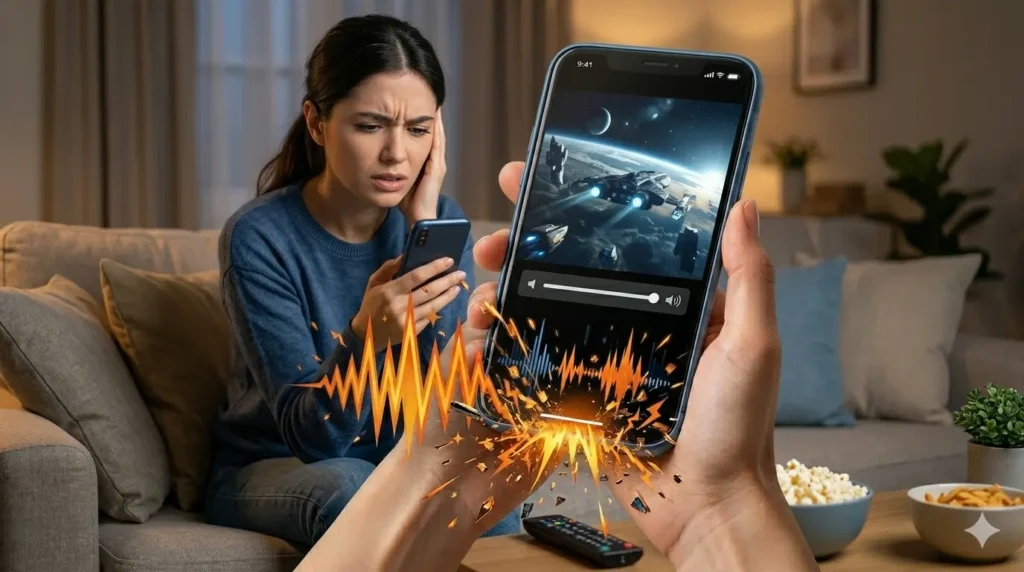
What Does a Crackling Speaker Sound Like?
A crackling speaker makes sharp, choppy, or static-like noises during audio playback. Some people describe it as buzzing, popping, or a distorted sound — like the audio is breaking apart.
It can happen at any volume, during calls, music, videos, or even just notifications.
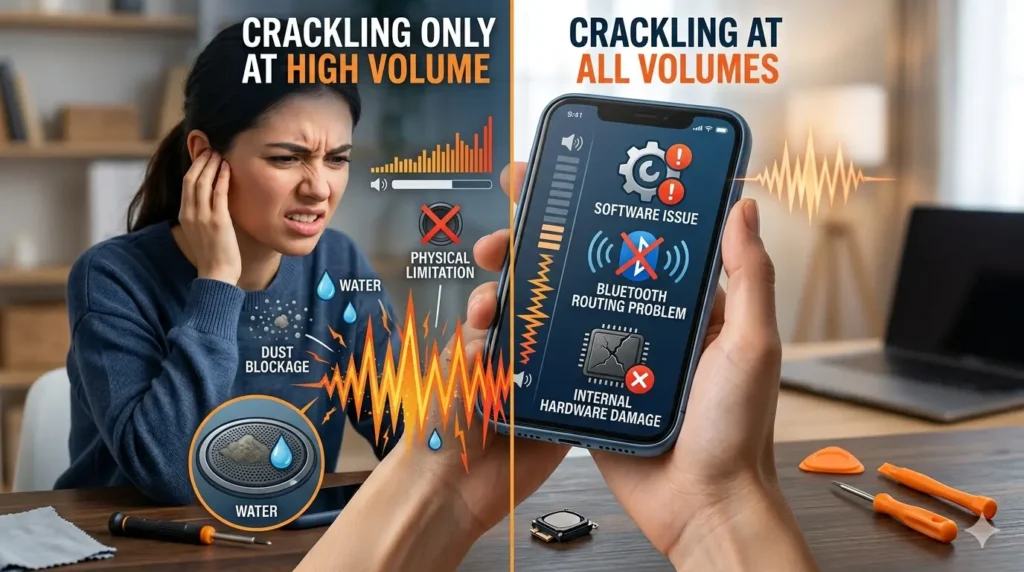
Crackling Only at High Volume vs All Volumes
If your speaker crackles only at high volume, the cause is usually dust blockage, water, or a physical limitation of the speaker. At high volume the speaker works harder — and any blockage makes the distortion worse.
If your speaker crackles even at low volume, the cause is more likely a software issue, Bluetooth routing problem, or internal hardware damage.
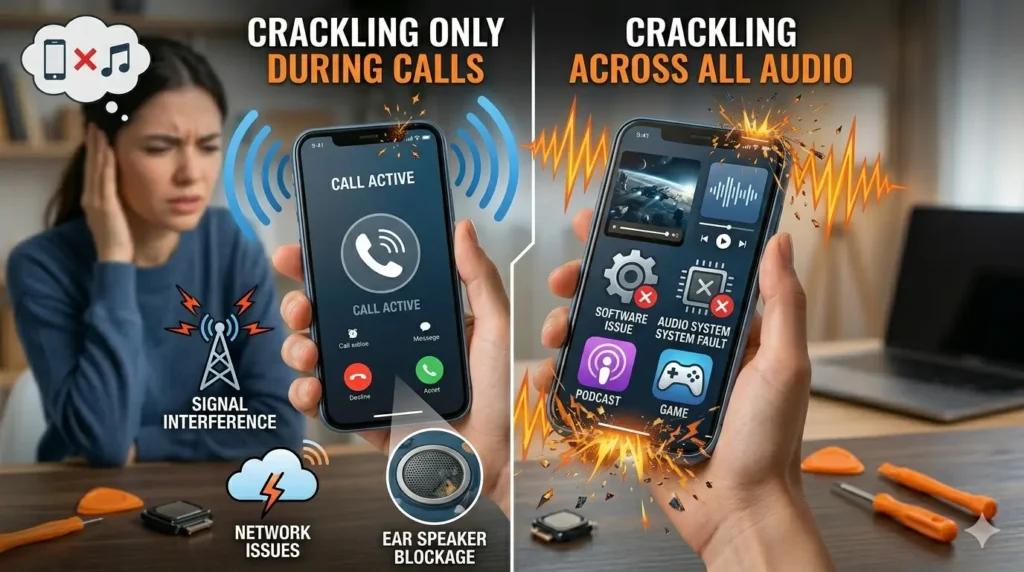
Crackling Only During Calls vs All Audio
If crackling only happens during phone calls, the cause could be signal interference, network issues, or your ear speaker being blocked. If it happens across all audio — music, videos, calls — the problem is with the speaker itself or your phone’s audio system.
Why Is My Phone Speaker Crackling? (8 Real Causes)
Dust and Debris Blocking the Speaker Grilleitle
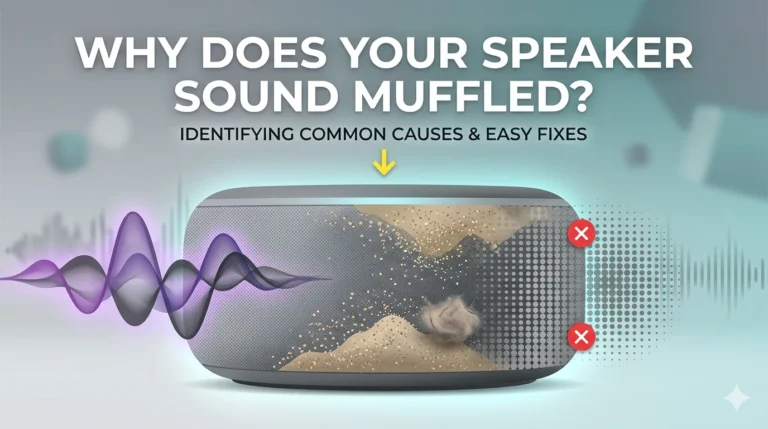
This is the most common cause. Every day your phone collects lint, dust, and tiny particles from your pocket and bag. Over time these particles pack tightly into the speaker grille and block sound from coming through clearly. The result is a crackling or muffled audio that gets worse the longer you ignore it.
Water or Moisture Inside the Speaker
Even a small splash, sweat, or humidity can push moisture into your speaker mesh. Water sits on the speaker diaphragm and disrupts its movement — causing crackling, distortion, or a muffled sound. This is one of the fastest causes to fix if you catch it early.
Phone Case or Screen Protector Blocking Speaker
This is a surprisingly common cause that most people overlook. A thick phone case can partially cover the speaker opening and muffle or distort sound. A screen protector that extends too far down can also cover the ear speaker grille. Try removing your case and screen protector and test the audio — you might be surprised.
Corrupted Audio File or App Issue
Sometimes the problem is not your speaker at all. A corrupted audio file, a buggy streaming app, or a broken video file can produce crackling sounds that seem like a speaker problem. Try playing audio from a different app or file to rule this out.
Bluetooth Interference or Wrong Audio Routing
If your phone is still connected to Bluetooth headphones, a car system, or a speaker in the background, audio can get routed incorrectly and cause crackling. Your phone might be trying to send audio to two places at once. Disconnecting all Bluetooth devices often fixes this instantly.
Software Glitch or Outdated Operating System
A recent app update or operating system update can trigger audio glitches that cause your speaker to crackle. The phone sends incorrect signals to the speaker — causing distortion even when nothing physical is wrong. Restarting your phone or updating the software usually fixes this quickly.
Equalizer or Audio Settings Problem
Cranking the bass or treble too high in your equalizer can cause distortion and crackling — especially in small phone speakers that cannot handle extreme frequency boosts. Wrong audio enhancement settings can also interfere with clean sound output.
Physical Damage to Speaker Components
If you dropped your phone or exposed it to extreme pressure, internal speaker components like the voice coil or diaphragm may be damaged. Physical damage causes permanent crackling that no software fix or cleaning will solve. This type of crackling gets worse over time and needs professional repair.
How to Tell If Crackling Is Hardware or Software
This is the key question before you start fixing anything.
It is likely software if:
- Crackling started after a software update
- It only happens in one specific app
- Restarting the phone temporarily fixes it
- Sound is fine through headphones
It is likely hardware if:
- Crackling happens across all apps and audio sources
- Sound is also distorted through headphones
- Crackling started after a drop or water exposure
- It gets worse over time regardless of what you do
Use this to decide where to start your troubleshooting.
How to Fix Phone Speaker Crackling – Step by Step
Clean the Speaker Grille
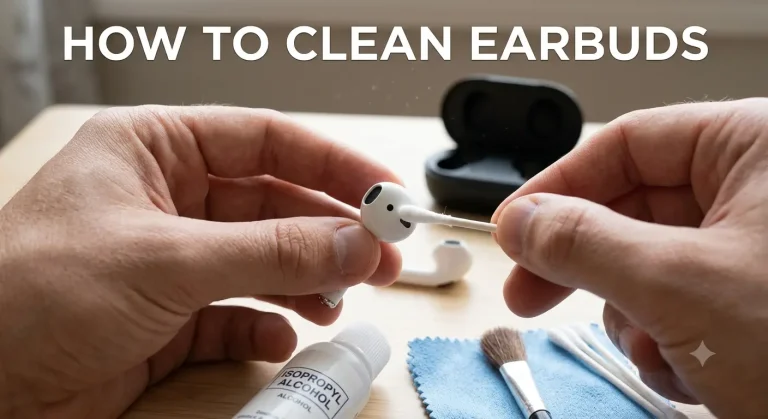
Use a clean, dry, soft-bristled brush to gently sweep across the speaker grille. Brush in one direction only — do not scrub back and forth as this pushes debris deeper inside. You can also use a small piece of adhesive tape pressed gently onto the grille to lift out lint and dust particles.
Never use sharp objects, pins, or liquids to clean the speaker — you will damage the mesh permanently.
Remove Water from Speaker Using Sound Frequency
If water is causing the crackling, use a sound frequency tool to push it out. Visit fixmyspeakercleaner.net — a free tool that plays a 165Hz tone to vibrate the speaker diaphragm and eject water from the mesh. No download needed.
Set volume to maximum, point speaker downward, and run it 2-3 times. Most users hear the crackling reduce or disappear after the first or second run.
Remove Phone Case and Screen Protector
Take your phone case off completely. Remove any screen protector if it extends near the speaker area. Play audio and check if the crackling reduces. If it does — your case or screen protector was the problem. Replace with a better-fitting case that does not block the speaker.
Turn Off Bluetooth and Check Audio Routing
Go to your phone settings and turn Bluetooth completely off. Wait 30 seconds and play audio again. Also check your Control Center or audio output settings to make sure audio is routed to your phone speaker and not an external device. This fixes a surprising number of crackling cases instantly.
Restart Your Phone
A simple restart clears temporary software glitches and resets audio drivers. This is the fastest fix to try and works more often than people expect. If the crackling disappears after a restart — the cause was a software glitch.
Check and Fix Equalizer Settings
Go to Settings → Sound → Equalizer and reset everything to default or flat. Remove any audio enhancement, bass boost, or surround sound settings. These enhancements often cause crackling in small phone speakers that cannot handle the extra frequency load.
Test with Headphones to Isolate the Problem
Plug in wired headphones and play the same audio. If the sound is perfectly clear through headphones but crackling through the speaker — the problem is with the physical speaker, not the software or audio file. This test quickly narrows down where the fault lies.
Check for Corrupted Files or App Issues
Play audio from multiple sources — YouTube, Spotify, a local music file, and a phone call. If crackling only happens with one source, that source is the problem — not your speaker. Delete and reinstall the problematic app or re-download the corrupted audio file.
Boot Android into Safe Mode
On Android, hold the power button → press and hold “Power Off” → tap OK to enter Safe Mode. In Safe Mode only system apps run — all third-party apps are disabled. Play audio in Safe Mode. If the crackling stops, a third-party app is causing the problem. Uninstall recently installed apps one by one to find the culprit.
Turn Off Do Not Disturb Mode
Some Do Not Disturb configurations can interfere with audio output and cause distortion. Go to Settings → Do Not Disturb and make sure it is completely turned off. Then test your speaker again.
Adjust Ringer and Alerts Slider (iPhone)
On iPhone go to Settings → Sounds & Haptics. Find the Ringer and Alerts slider and drag it back and forth several times. Apple recommends this step as it can reset the audio pathway and fix crackling or distortion caused by a stuck audio setting.
Update Your Phone Software
Go to Settings → General → Software Update on iPhone or Settings → System → Software Update on Android. Install any available updates. Software updates often include audio bug fixes that resolve crackling caused by recent glitches.
Factory Reset (Last Resort)
If nothing else works and the crackling is definitely software related, a factory reset will restore your phone to original settings. Back up all your data first.
Go to Settings → General → Transfer or Reset iPhone → Erase All Content on iPhone, or Settings → System → Reset → Factory Reset on Android.
Only do this after trying every other fix. It is effective but erases everything on your phone.
How to Fix iPhone Speaker Crackling
iPhone speakers crackle for a few specific reasons that Android users rarely experience.
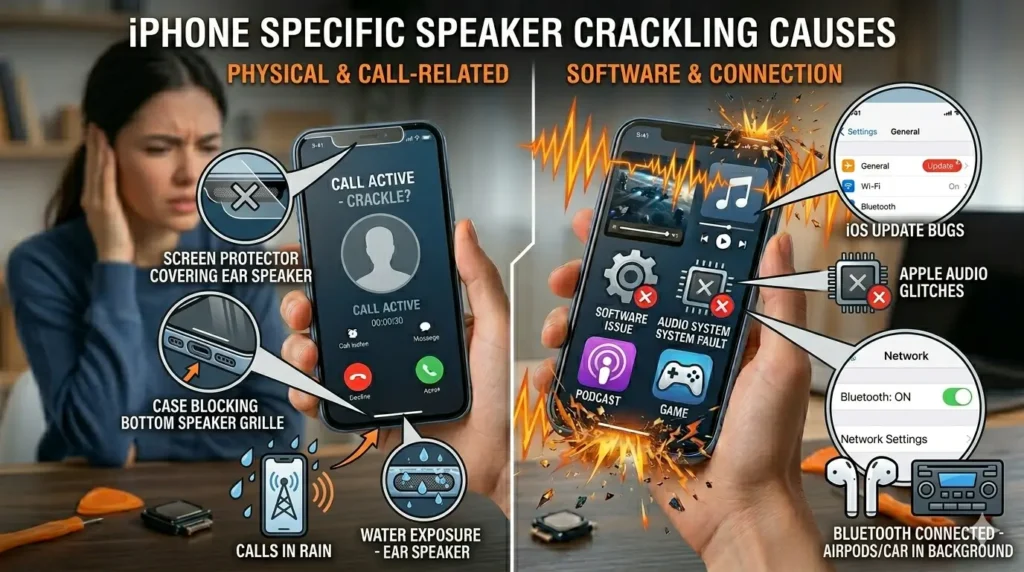
iPhone Specific Causes
- iOS update bugs — Apple updates sometimes introduce audio glitches
- Screen protector covering ear speaker
- Case blocking bottom speaker grille
- Bluetooth connected to AirPods or car in background
- Water exposure — especially ear speaker after calls in rain
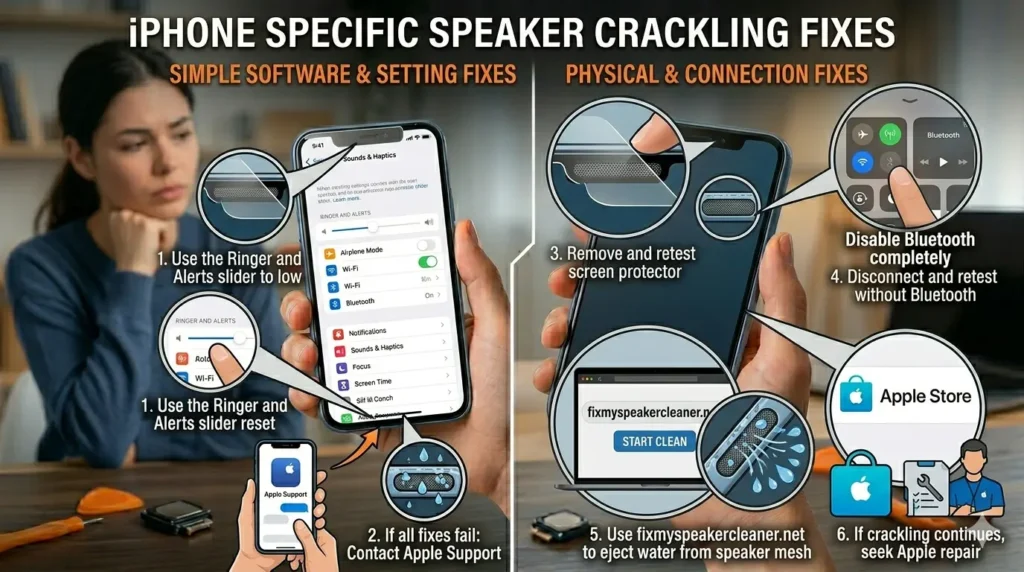
iPhone Specific Fixes
- Use the Ringer and Alerts slider reset in Settings → Sounds & Haptics
- Check if your screen protector covers the ear speaker grille — remove and retest
- Disable Bluetooth completely and test audio
- Use fixmyspeakercleaner.net to eject water from iPhone speaker mesh
- Contact Apple Support if crackling persists after all fixes
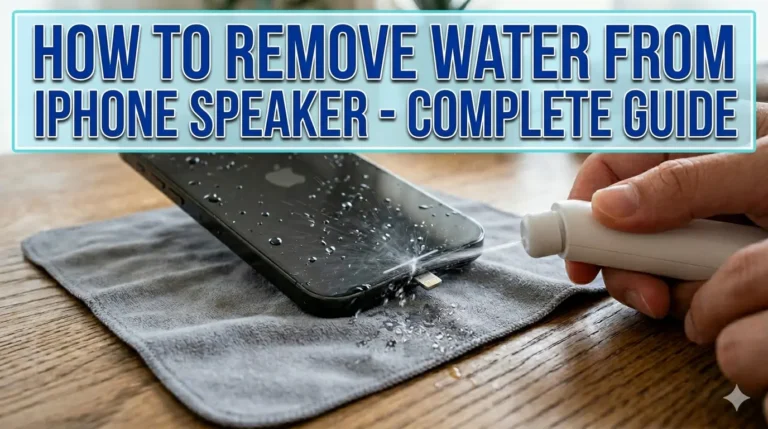
visit how to remove water from iphone speaker for more detail.
How to Fix Android Speaker Crackling
Android crackling has a few unique causes compared to iPhone.
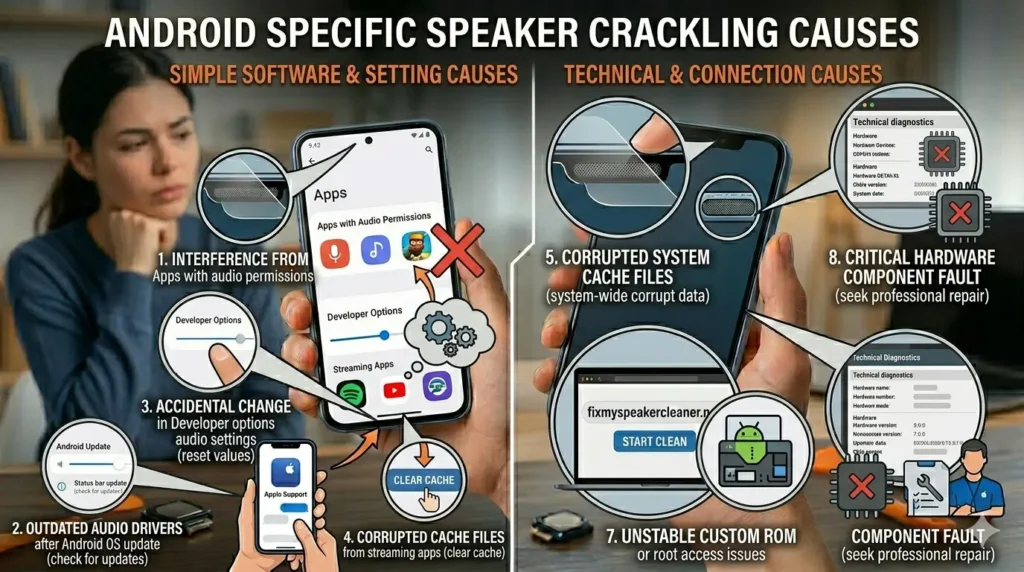
Android Specific Causes
- Third-party apps with audio permissions causing interference
- Outdated audio drivers after OS update
- Developer options audio settings changed accidentally
- Corrupted cache files from streaming apps
Android Specific Fixes
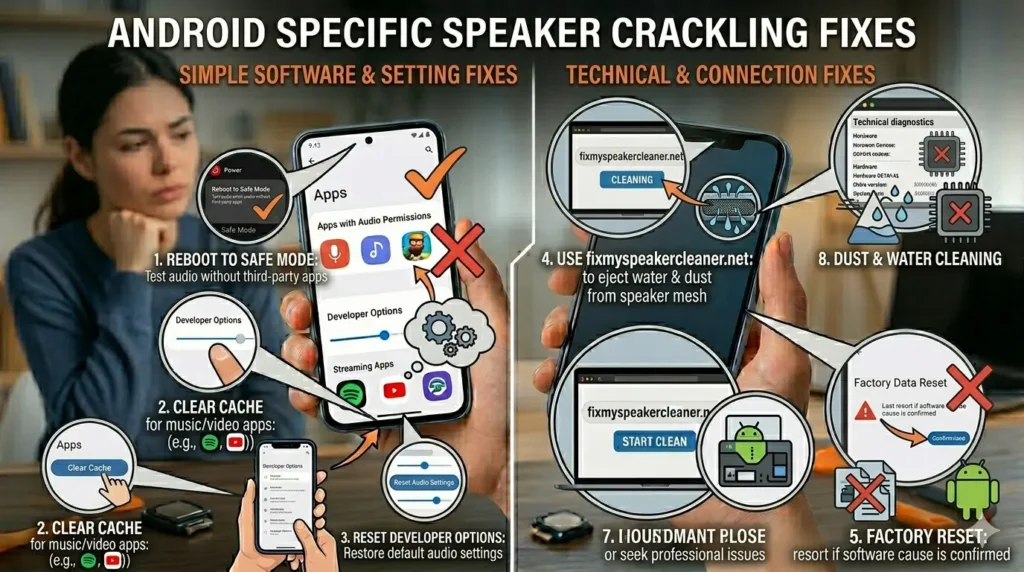
- Boot into Safe Mode to test without third-party apps
- Clear cache of music and video apps — Settings → Apps → Clear Cache
- Check Developer Options and reset audio settings if changed
- Use fixmyspeakercleaner.net to clean speaker from water and dust
- Factory reset as last resort if software cause confirmed
How to Fix Crackling Speaker After Water Damage
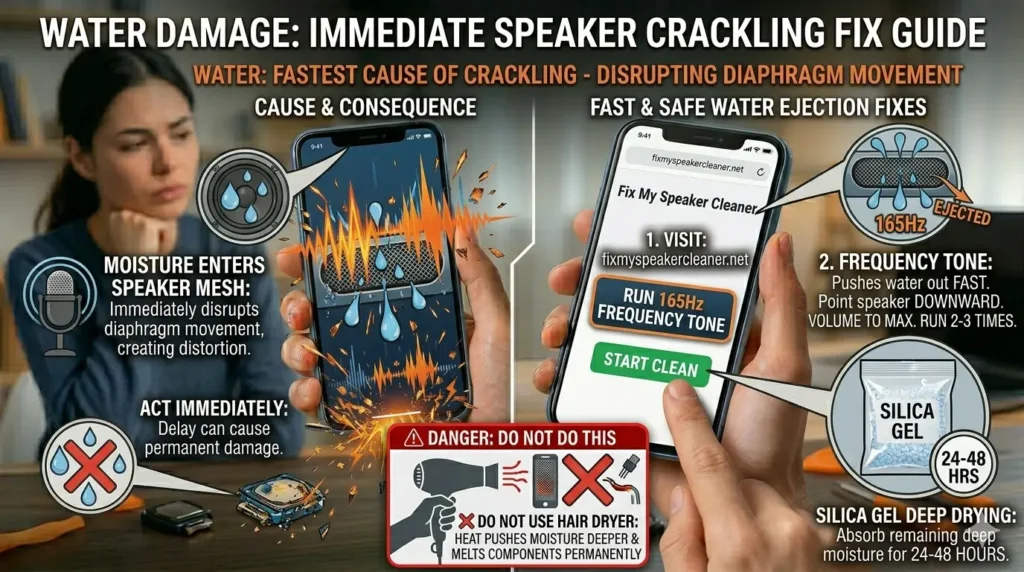
Water is one of the fastest causes of speaker crackling. The moment moisture enters the speaker mesh it starts disrupting the diaphragm movement — producing that crackling, distorted sound.
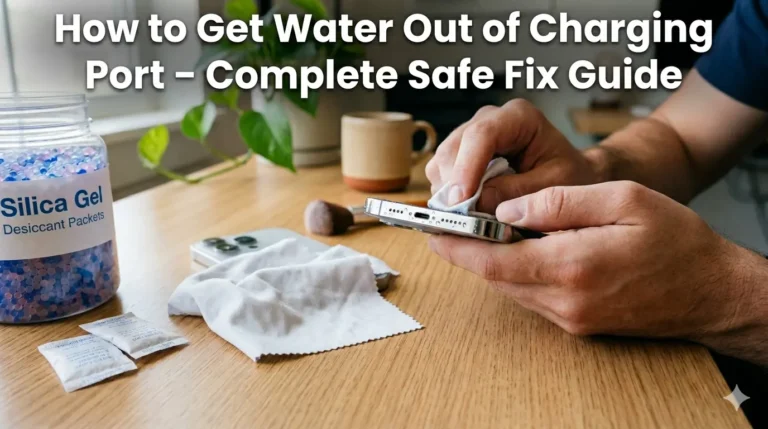
Act immediately. Use our free speaker cleaner tool — the 165Hz frequency tone pushes water out of the speaker mesh fast. Point speaker downward, set volume to max, run 2-3 times. Also use silica gel to absorb remaining deep moisture for 24-48 hours.
Do not use a hair dryer — heat pushes moisture deeper and can melt internal speaker components permanently.
How to Fix Crackling Bluetooth Speaker
Causes | Fixes |
|---|---|
Weak signal causes crackling | Move your phone closer to the Bluetooth speaker |
walls and metal interfere with signal | Remove obstacles between phone and speaker |
Bluetooth connection | Disconnect and reconnect the Bluetooth connection |
Nearby devices | Check for interference from other Bluetooth devices nearby |
Device problem | Test with a different phone to confirm the problem is the speaker not the phone |
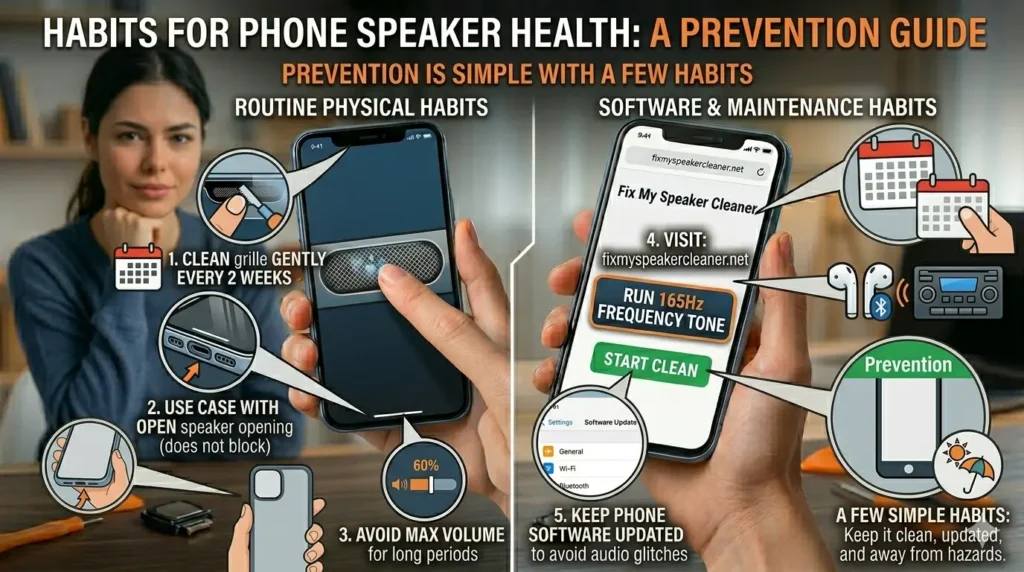
How to Prevent Phone Speaker Crackling in Future
Prevention is simple with a few habits:
- Clean your speaker grille gently every 2 weeks
- Keep your phone away from water, humidity, and rain
- Use a case that does not block the speaker opening
- Avoid playing audio at maximum volume for long periods
- Run the speaker cleaner tool once a month for maintenance
- Keep your phone software updated to avoid audio glitches
When to See a Professional
Most crackling cases are fixed at home. But see a professional repair technician if:
- Crackling gets worse over time after all fixes
- Speaker is completely silent after cleaning and water removal
- Visible physical damage around speaker grille
- Phone was dropped and crackling started immediately after
- Factory reset did not fix software crackling
Do not attempt to open your phone yourself — this voids your warranty and risks permanent damage to internal components.
Frequently Asked Questions
Conclusion
You’re watching your favorite show. The volume is up. And then — crackle. That sharp, annoying popping sound ruins everything.
Phone speaker crackling is one of the most common audio problems people face. The good news? Most causes are simple and you can fix them at home in minutes.
Start with the fastest fix — use the free 165Hz speaker cleaner at fixmyspeakercleaner.net to clear water and dust in minutes. Then work through the software fixes if needed.
Most crackling speakers are fully fixed within 10 minutes without spending a penny.