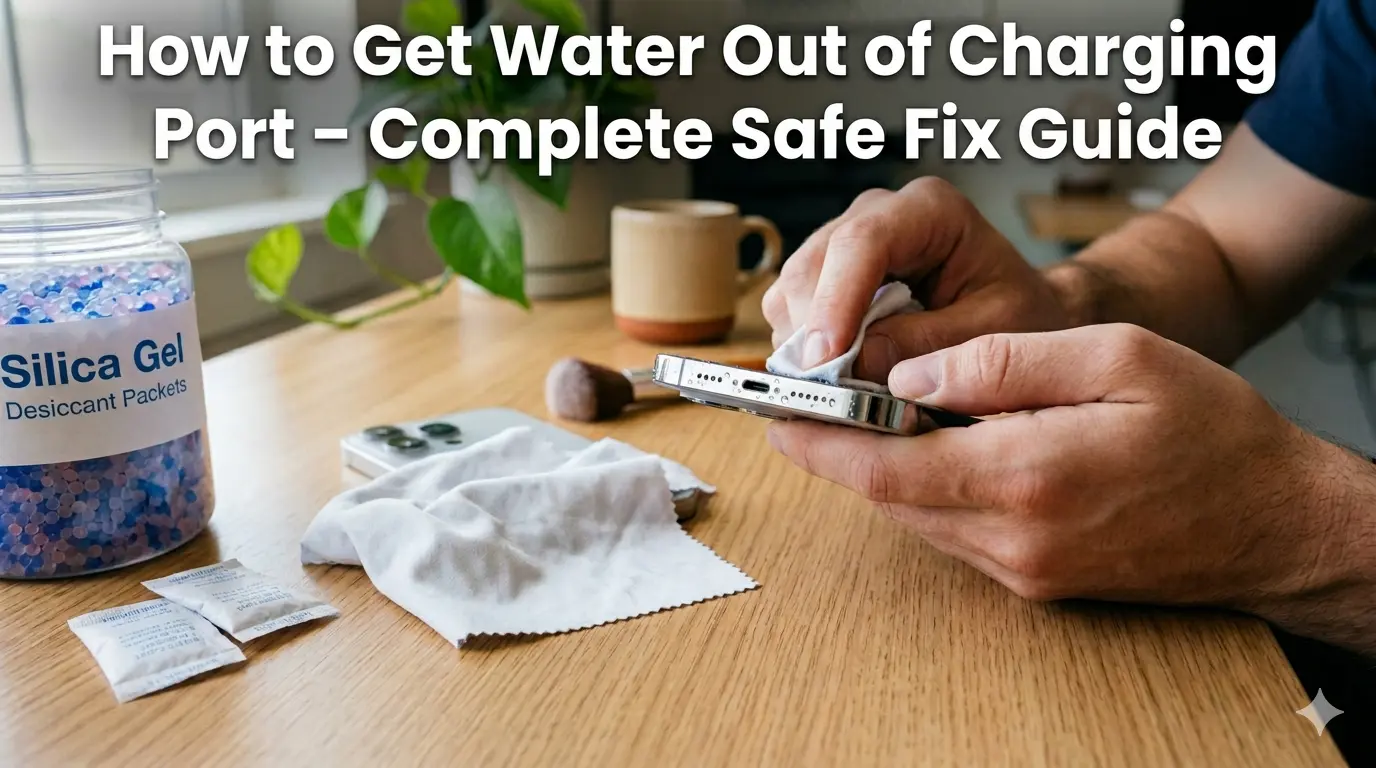
How to Get Water Out of Charging Port – Complete Safe Fix Guide
You plugged in your phone. Instead of charging, it flashed a warning — “Liquid Detected.” Your stomach dropped. Sound familiar?
Getting water in your charging port is one of the most common phone accidents out there. The good news is that in most cases, you can fix it yourself without spending a single penny. This guide shows you exactly how to get water out of your charging port — fast, safely, and without making things worse.
Why Water in Your Charging Port Is a Big Deal
Your charging port is where electricity enters your phone. When water gets in there, those two things — water and electricity — meet in a very bad way. It can cause short circuits, corrosion, or even permanent damage to the charging pins.
What Happens If You Charge With Water in the Port
If you plug in while the port is still wet, you are pushing power through a water-filled connector. That can fry the internal charging components in seconds. Water acts as a conductor and sends electricity where it should never go. This is why your phone throws a warning before it lets you charge.
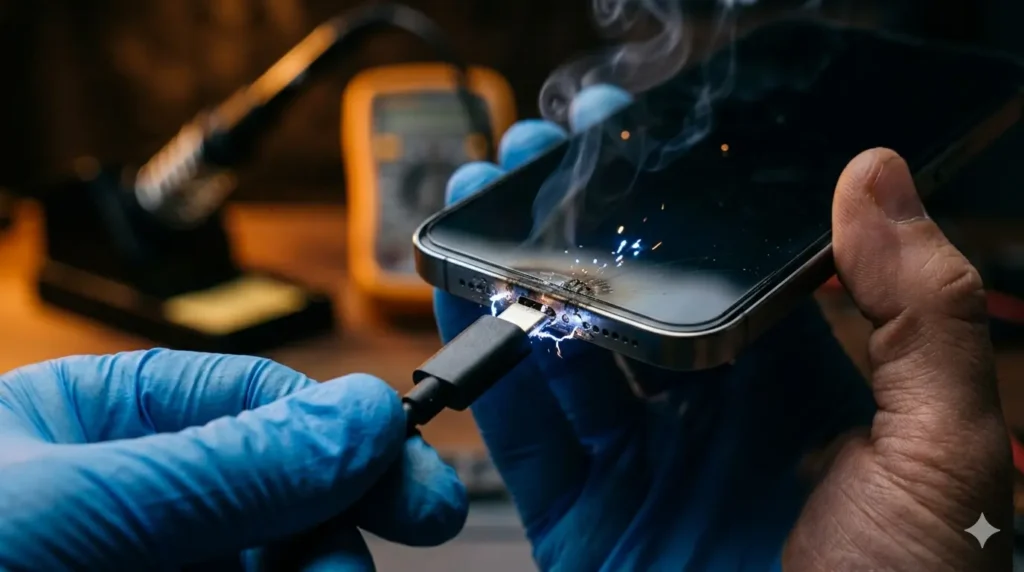
The “Liquid Detected” Warning – What It Means
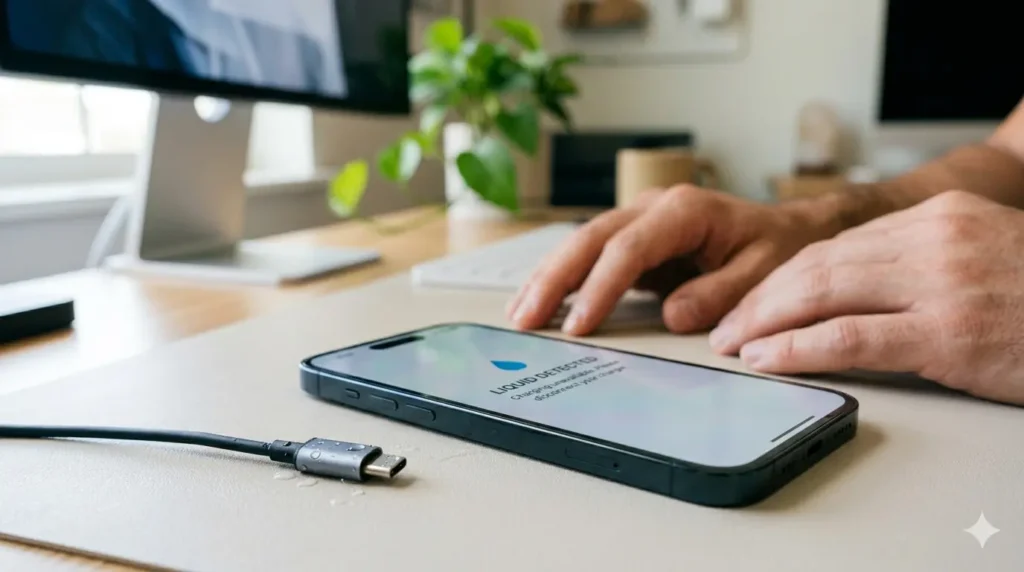
Modern iPhones and Android phones have built-in moisture sensors. When water touches the charging pins, the sensor fires and blocks charging instantly. It is not a glitch — it is your phone protecting itself. Trust it and do not force the charge.
Signs Water Is in Your Charging Port
Not sure if water is actually the problem? Look for these signs. Your phone shows a “Liquid Detected” or moisture warning on screen. The phone refuses to charge even though it is powered on. You can see tiny water droplets or a foggy look inside the port opening. The port area feels damp to the touch. Any of these means it is time to act.
First Things to Do Immediately
Speed matters here. The faster you react, the less chance water has to cause corrosion inside the port.
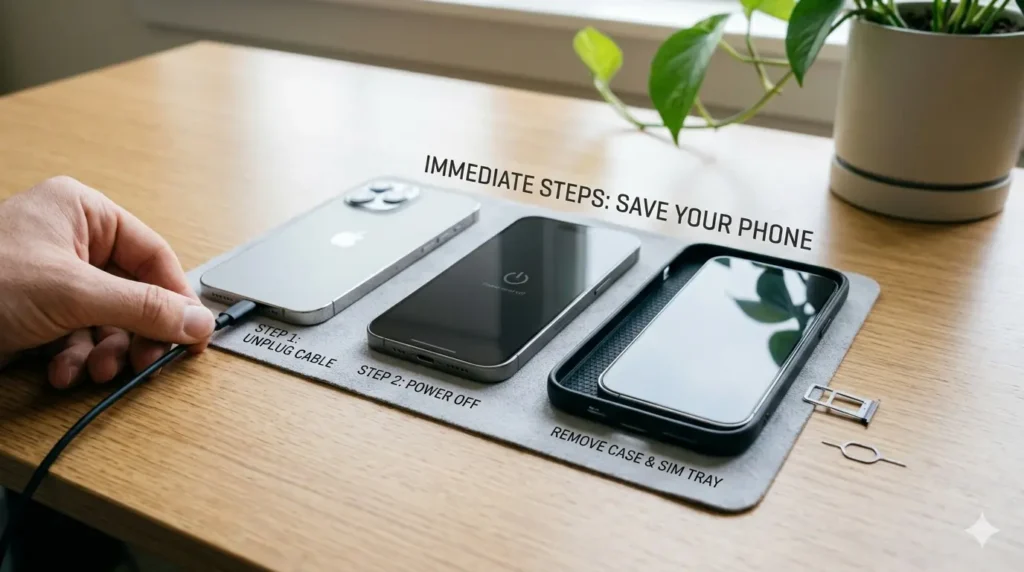
Unplug Everything Right Now
The very first thing to do is unplug the charging cable. Do not wiggle it. Do not try a different cable. Any cable connected to a wet port is a risk. Pull it out immediately and put it aside.
Power Off Your Phone
Turn your phone completely off. A powered-on phone with water near its charging contacts is a recipe for a short circuit. Shutting it down removes electricity from the equation. Give your phone the best chance to recover by simply turning it off.
Remove SIM Card and Case
Pop out the SIM card tray to improve airflow inside the device. Remove your phone case too — cases trap moisture against the phone and slow down drying. These small steps give water more paths to escape.
How to Get Water Out of Charging Port – All Methods
Now let’s get to the actual fixes. Try them in this order for the best results.
Gravity Drainage (Do This First)
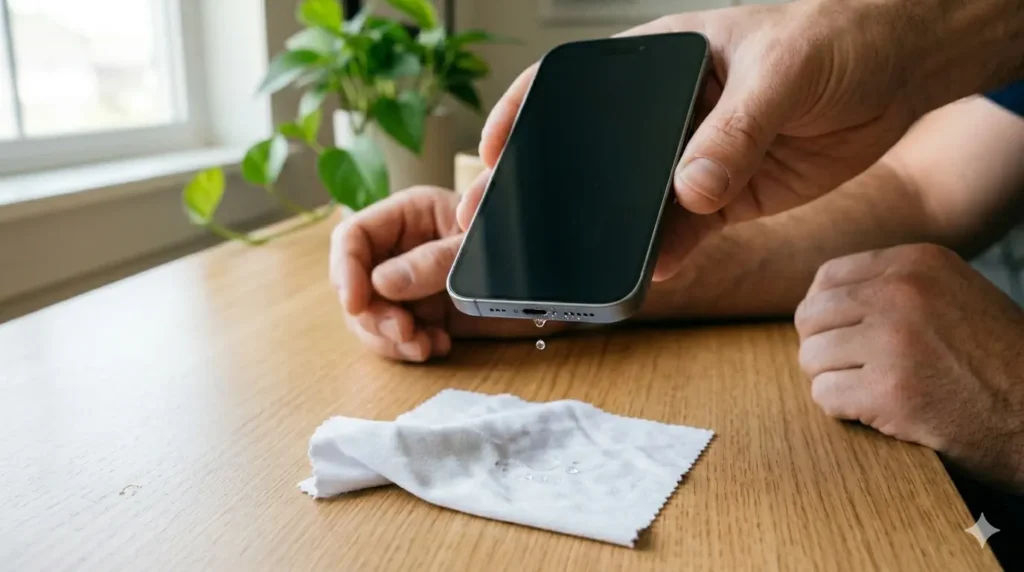
Hold your phone with the charging port pointing straight down. Give it a few light taps against the palm of your hand to shake loose water toward the opening. Then rest your phone at a downward angle — lean it against something stable. Let gravity do the work for 10 to 15 minutes. This is always the first step before anything else.
Sound and Vibration Tool (Fastest Fix)
Sound frequencies can vibrate water droplets loose from tight spaces inside the port. A specific low-frequency tone creates vibration that pushes trapped water toward the opening so it can drain out. This is the same technology used to remove water from phone speakers — and it works just as well for the charging port.
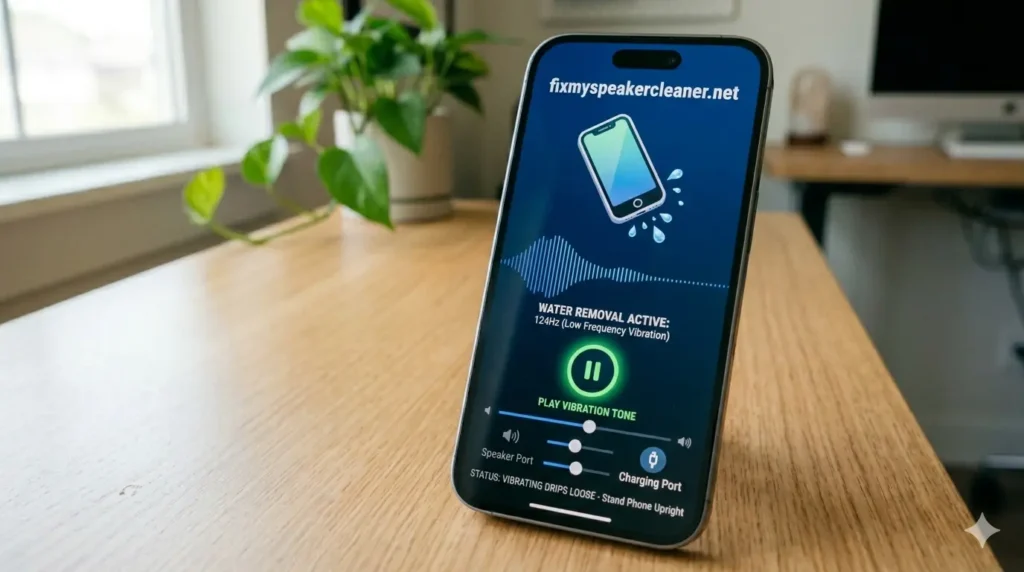
How to Use Fix My Speaker Tool for Charging Port
Go to fixmyspeakercleaner.net on your phone browser. Run the free water eject tool. Hold your phone with the port facing down while the sound plays. The vibration will help shake water loose toward the opening. Run it 3 to 5 times for stubborn moisture. You will often see tiny water drops appear near the port opening as it works.
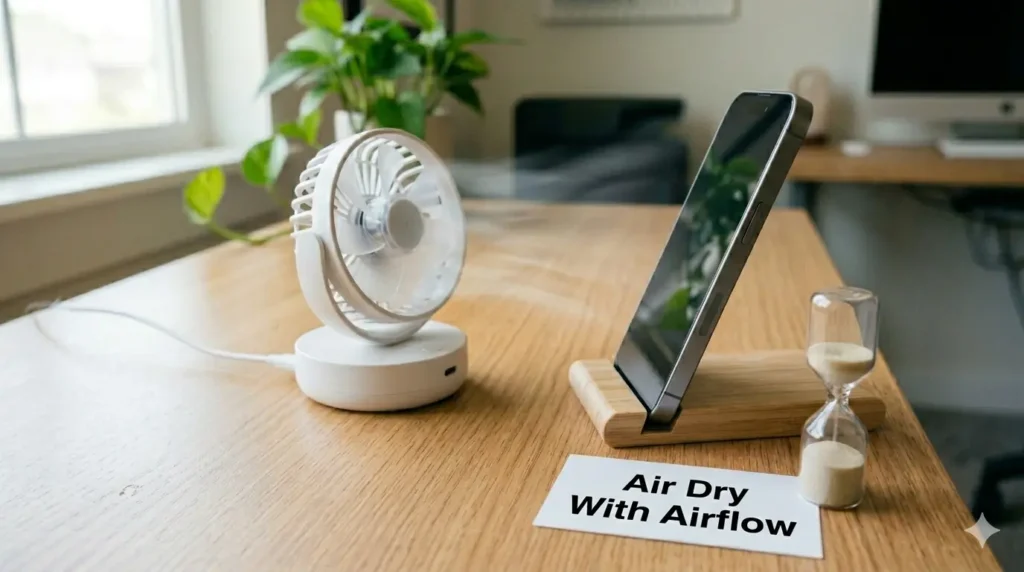
Air Dry With Airflow
After using the vibration tool, set your phone in a dry area with good airflow. Near a fan on low speed works well. A dry, well-ventilated room is fine too. Avoid direct sunlight and keep it away from heat sources. Give it at least 2 to 4 hours for a light splash, and overnight for a heavier soak.
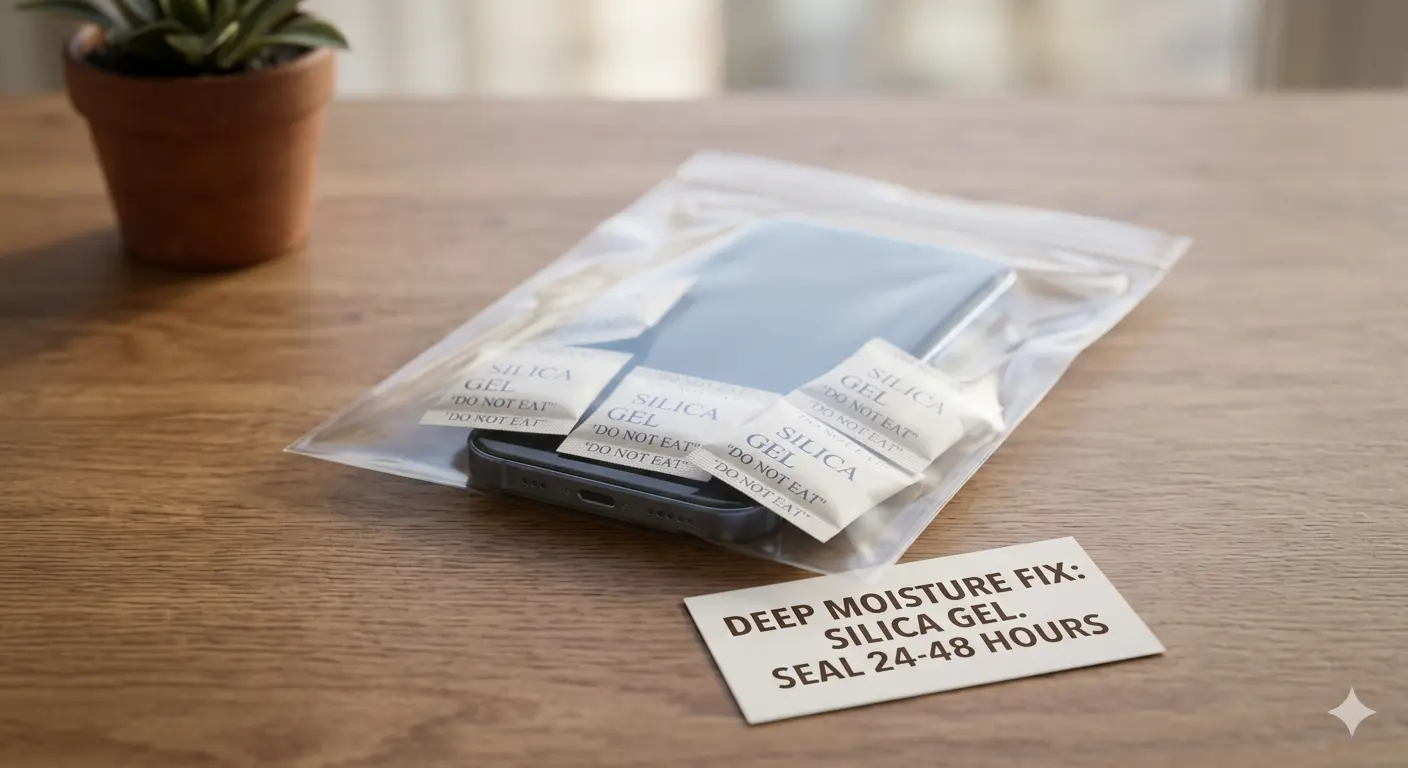
Silica Gel Packets (Best for Deep Moisture)
Silica gel absorbs moisture far better than rice — and without leaving any dust or debris behind. Place your phone in a sealed zip-lock bag with 4 to 5 silica gel packets. Leave it for 24 to 48 hours. This method works best when you suspect water got deeper inside the port than what air drying alone can reach.
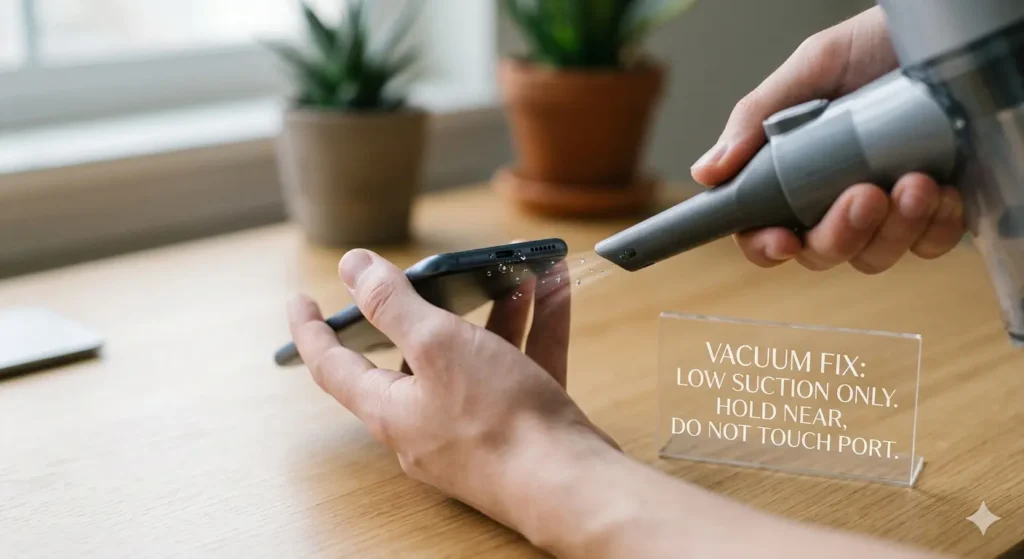
Vacuum Cleaner (Low Suction Only)
A vacuum cleaner with a small attachment can gently suck water out of the port opening. Use the absolute lowest suction setting. Hold the nozzle near the port — not directly touching it. High suction can damage the delicate charging pins. Use this method only after trying gravity and vibration first.
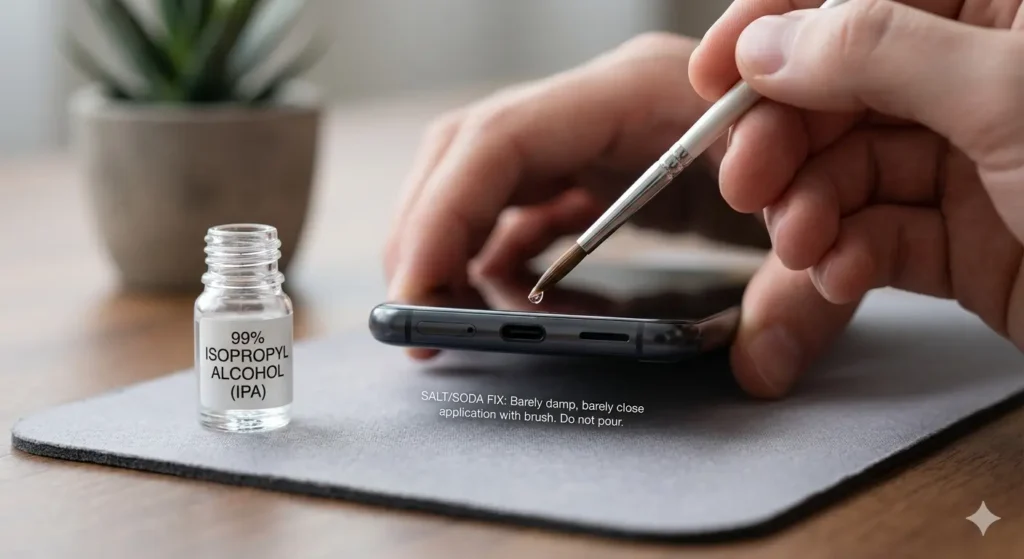
Isopropyl Alcohol (For Saltwater or Soda Only)
Plain water usually evaporates cleanly. But saltwater, sweat, or sugary drinks like soda leave sticky mineral residue behind even after drying. That residue causes corrosion over time. In those cases, apply a tiny amount of 90%+ isopropyl alcohol to the visible port area using a soft brush. The alcohol dissolves the residue and evaporates quickly without leaving moisture behind. Never pour it directly into the port — use only a barely damp application.
How to Get Water Out of iPhone Charging Port
iPhone users face a specific challenge — Apple’s moisture sensors are very sensitive. Even a light splash can trigger the Liquid Detected warning. The good news is the fix process is the same as above. But here are a couple of iPhone-specific things to know.
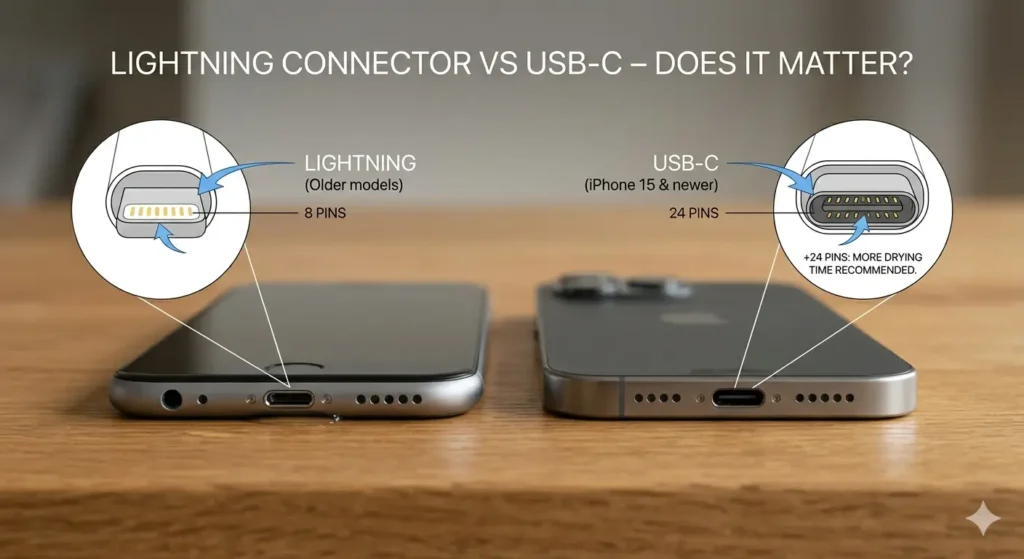
Lightning Connector vs USB-C – Does It Matter?
Older iPhones use a Lightning connector. iPhone 15 and newer use USB-C. Both port types are equally vulnerable to water. The drying methods are identical for both. The only difference is that USB-C ports have slightly more pins, so giving them a bit more drying time is wise.
What the Liquid Detected Alert Means on iPhone
When you see “Liquid Detected in Lightning Connector” or “Charging Not Available,” your iPhone has sensed moisture. Do not tap “Dismiss” and force-charge it. Follow the fix steps above first. Apple recommends leaving your iPhone in a dry area with airflow for at least 30 minutes before trying to charge again. If the alert keeps coming back, the port is still wet — keep waiting.
How to Get Water Out of Android Charging Port
Android phones use USB-C ports across all major brands including Samsung, Google Pixel, and OnePlus. The water removal process is identical to iPhones. However, Android phones may show the moisture warning differently.
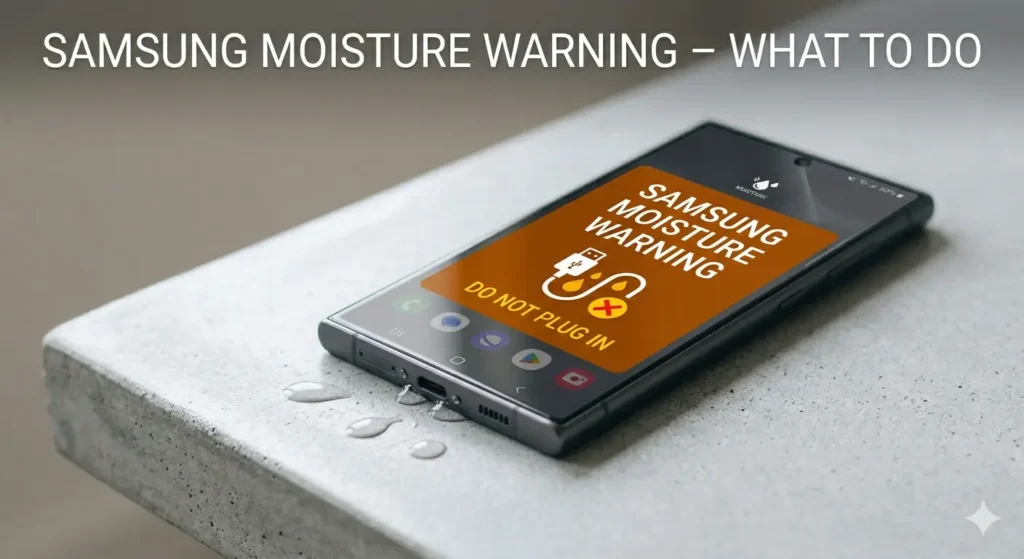
Samsung Moisture Warning – What to Do
Samsung Galaxy phones display a “Moisture has been detected” notification in the status bar. When you see this, unplug immediately and follow the same steps — gravity drainage, vibration tool, then air dry. Samsung also recommends waiting at least one hour before attempting to charge again after the warning clears.
What NOT to Do When Water Is in Your Charging Port
These are the most common mistakes people make. Avoid all of them — they make things worse, not better.
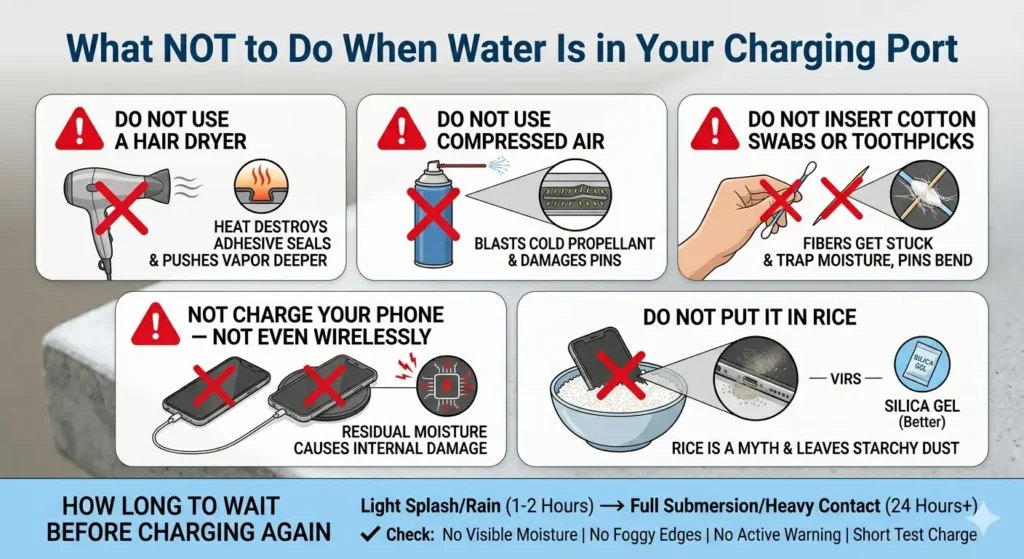
Do Not Use a Hair Dryer
Heat destroys the adhesive seals inside your phone that keep it water resistant. It also warps the plastic around the port and can push water vapor deeper into internal components. Room-temperature airflow is all you ever need.
Do Not Use Compressed Air
Compressed air cans blast cold propellant at high pressure. That pressure can push water further into the port instead of out of it. It can also damage the delicate charging pins inside. Short bursts from a distance may seem harmless but are not worth the risk.
Do Not Insert Cotton Swabs or Toothpicks
Cotton fibers get stuck on the charging pins and trap moisture. Toothpicks can bend or break the pins permanently. Nothing solid should ever go inside the charging port — the fix tools work from outside the port, not inside.
Do Not Charge Your Phone — Not Even Wirelessly
Wireless charging seems safe when the port is wet, but residual moisture inside the device can still cause internal damage when electricity flows. Wait until your phone is fully dry before using any form of charging. Your phone can survive a few hours without power — it may not survive a short circuit.
Do Not Put It in Rice
Rice is a myth. It absorbs almost no moisture in a useful timeframe and leaves starchy dust near your port openings. Silica gel works 30 times faster and leaves nothing behind. Skip the rice bowl entirely.
How Long to Wait Before Charging Again
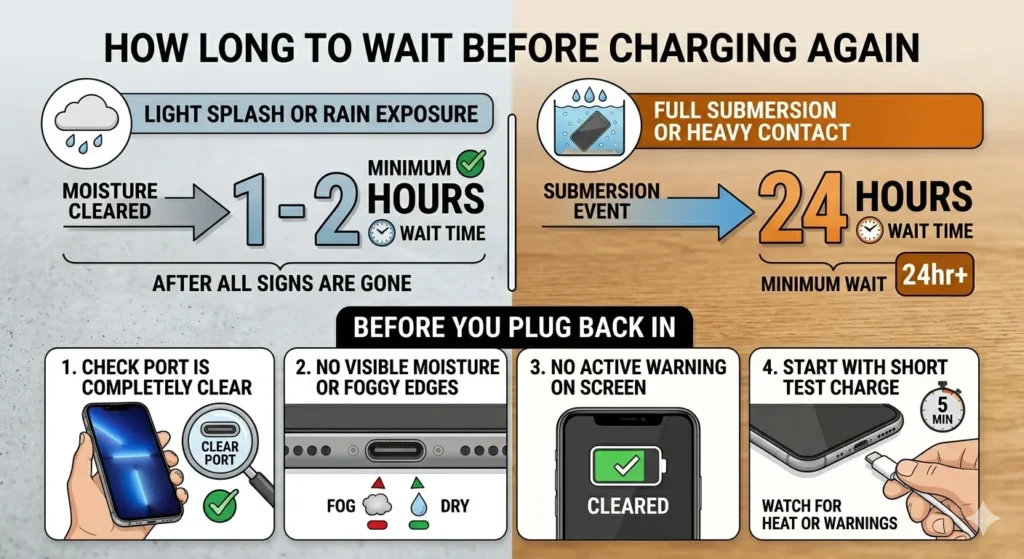
For a light splash or rain exposure, wait at least 1 to 2 hours after all signs of moisture are gone. For a full submersion or heavy water contact, wait a minimum of 24 hours. Before you plug back in, check that the port looks completely clear with no visible moisture, no foggy edges, and no active warning on screen. Start with a short test charge and watch for any heat or warnings.
Troubleshooting – Still Having Issues After Drying?
Followed all the steps but still having problems? Here is what to check.
Phone Not Charging After Getting Wet
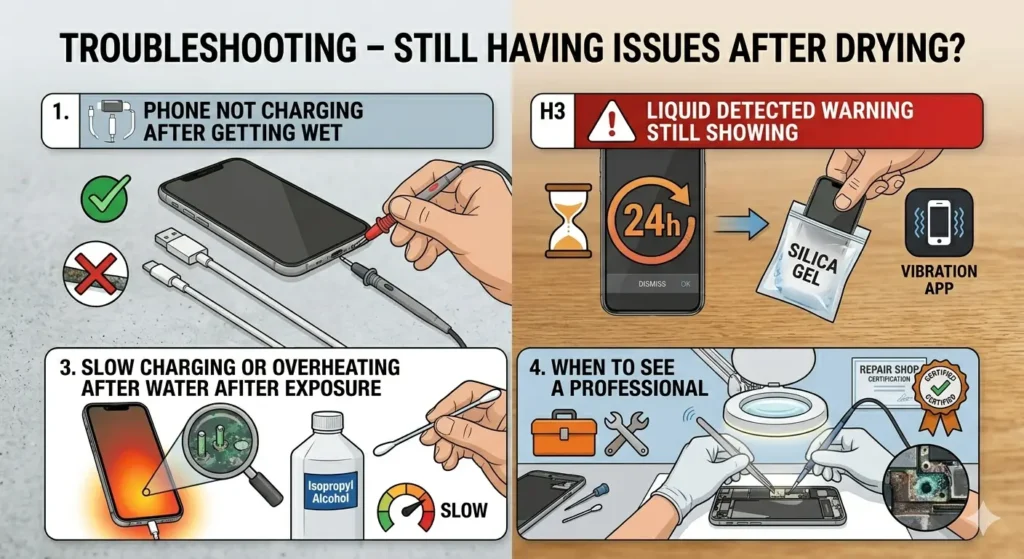
If your phone still will not charge after full drying, the charging pins may have corroded. Try a different cable first — sometimes the cable, not the port, is the problem. If a different cable does not help, the port may need professional cleaning or replacement.
Liquid Detected Warning Still Showing
If the warning stays on after 24 hours of drying, there is still moisture deep inside the port. Go back to the silica gel bag method for another 24 hours. Running the vibration tool a few more times can also help push remaining moisture toward the surface.
Slow Charging or Overheating After Water Exposure
Slow charging and overheating are early signs of corrosion on the charging pins. This is common when water sat in the port for several hours before drying. Try the isopropyl alcohol method to clean the visible port area. If the problem continues, a repair shop can assess and clean the internal contacts.
When to See a Professional
If your phone still refuses to charge after all methods above, if you see visible green or white corrosion inside the port, or if the phone behaves strangely after drying — it is time to see a professional. A certified technician can open the device and clean internal corrosion that you cannot reach from outside.
Does Water in Charging Port Void iPhone Warranty?
Apple’s standard warranty does not cover water or liquid damage. iPhones built after 2006 have a built-in Liquid Contact Indicator (LCI) inside the device. If water has touched it, the indicator turns red — and Apple can see this during service. If your phone is covered by AppleCare+, accidental liquid damage is covered with a service fee. Check your coverage before assuming you are on your own.
How to Prevent Water Getting Into Charging Port Again
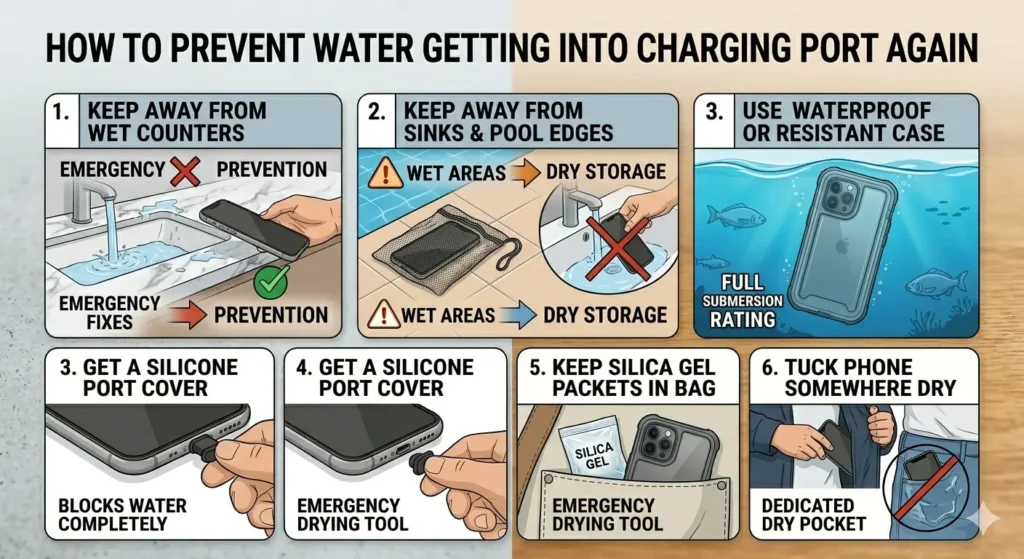
Prevention beats emergency fixes every single time. Keep your phone away from wet counters, sinks, and pool edges. Use a waterproof or water-resistant phone case, especially near water. Get a silicone port cover for your USB-C or Lightning port — they are cheap and block water completely. Keep silica gel packets in your bag for emergencies. And whenever you are near water, tuck your phone somewhere dry rather than keeping it in a pocket.
Frequently Asked Questions
Final Word
A wet charging port does not have to mean a dead phone. Act fast, skip the hair dryer and rice, and use the right methods — gravity first, then the vibration tool at fixmyspeakercleaner.net, then air drying and silica gel for anything stubborn.
Most water damage is fully reversible when you know what you are doing. Now you do.