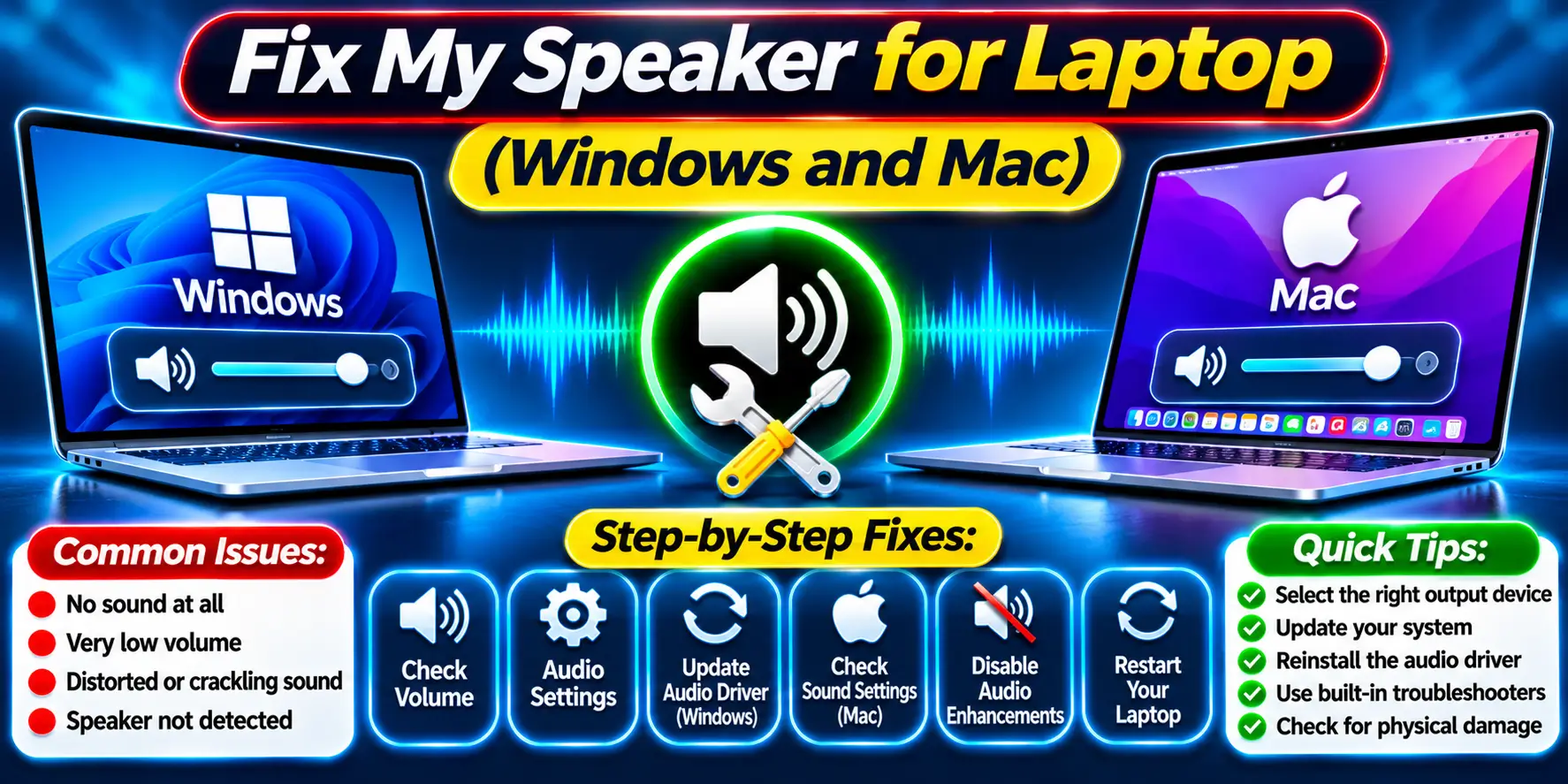
Most laptop speaker problems come from the wrong output device, a bad audio setting or dust in the grille. Check your output device, turn off audio enhancements, then brush the grille gently with a dry, soft brush.
Still weak? Run the free Fix My Speaker tool on your laptop. It plays cleaning tones that can loosen light dust.
Common Laptop Speaker Problems
| Problem | Likely cause | Where to start |
|---|---|---|
| Low volume | Wrong output device, audio enhancements, blocked grille | Fix 1, Fix 3, Fix 4 |
| Muffled sound | Dust, laptop used on a bed, enhancements | Fix 3, Fix 4 |
| Crackling | Driver fault, volume at 100 percent, dust | Fix 4, Fix 6 |
| No sound | Muted, wrong device, missing driver | Fix 1, Fix 5, Fix 6 |
| One speaker not working | Balance or mono setting, loose or damaged speaker | Fix 1, then repair |
| Sound gone after a spill | Liquid inside the laptop | Power off first, see the spill section |
Where Laptop Speakers Sit and Why It Matters
Most Windows laptops have speakers on the bottom edge or above the keyboard. Bottom speakers pull in dust and get blocked by beds and sofas.
Many MacBooks push sound through slots beside the keyboard, so dust and liquid can travel down through the keys. In India, dust, monsoon humidity and daily use on beds make all of this worse.
Software Causes vs Physical Causes
| Type | Common causes | Clue |
|---|---|---|
| Software | Volume mixer, wrong output, audio enhancements, driver fault, update bug | Headphones sound bad too |
| Physical | Dust, blocked grille, liquid, damaged speaker | Headphones sound fine, speakers do not |
A driver fault spoils the signal before it reaches the speaker, so headphones suffer too. A blocked grille only hurts the speaker.
Fix 1: Check Volume, Output Device and Balance on Windows
I have seen people book a repair for a laptop that was sending sound to an HDMI monitor or a forgotten Bluetooth speaker. Check this first. It costs nothing.
- Click the speaker icon on the taskbar and raise the volume to about 70 percent.
- Open Settings, then System, then Sound. On Windows 10, right-click the speaker icon and choose Open Sound settings.
- Under Output, choose your laptop Speakers, not HDMI, a monitor or Bluetooth.
- Open Volume mixer (under Advanced on Windows 11, or from the speaker icon on Windows 10). Raise System sounds and the quiet app.
- On Windows 11, select your speakers, check Left and Right match under Volume, and turn Mono audio off.
Fix 2: Check Sound Settings on Mac
- Choose Apple menu, then System Settings, then Sound. On macOS 12 or older, open System Preferences, then Sound.
- Open the Output tab and select your MacBook speakers.
- Raise the output volume and make sure Mute is off.
- If one side is weak, centre the Balance slider when shown. Then open Accessibility, then Audio, and turn off Play stereo audio as mono.
- Disconnect headphones, USB audio devices and external displays, then select the built-in speakers again.
Fix 3: Clear the Speaker Grille
A common bench case is a laptop used on a bed for two years, with lint packed into the bottom grille. Beds and pillows also block bottom speakers. In monsoon, damp dust sticks to the mesh.
- Shut down the laptop and unplug the charger.
- Place it on a hard, flat table in good light.
- Brush the grille with a clean, dry, soft brush using short strokes.
- Wipe the outside with a dry microfibre cloth, then power on and test.
Fix 4: Turn Off Audio Enhancements
Bass boost and spatial sound can make a laptop sound hollow or crackly. Switch off profiles in brand apps like Dolby and Waves MaxxAudio too.
- Windows 11: open Settings, then System, then Sound, and select your speakers under Output.
- Set Audio enhancements to Off. On some builds it sits under Advanced settings for that device.
- Windows 10: right-click the speaker icon, choose Sounds, open Playback, select Speakers and click Properties.
- Open the Enhancements tab, tick Disable all sound effects, and click OK. If the tab is missing, your driver does not offer it.
Fix 5: Run the Audio Troubleshooter and Restart
- Windows 11: open the Get Help app and run the audio troubleshooter, or open Settings, then System, then Sound, and under Advanced choose Troubleshoot common sound problems, then Output devices.
- Windows 10: open Settings, then Update and Security, then Troubleshoot, then Additional troubleshooters, then Playing Audio, and click Run.
- Mac: choose Apple menu, then Restart. If sound still stalls, run sudo killall coreaudiod in Terminal to restart the audio service.
Fix 6: Update or Reinstall the Audio Driver
Sound that vanishes right after a Windows update is usually a driver problem, not a dead speaker. A power cut in the middle of an update can also leave a driver half installed.
- Right-click the Start button, open Device Manager, and expand Sound, video and game controllers.
- Right-click your audio device, often Realtek, choose Properties, then Driver, and click Roll Back Driver if available. Restart.
- If it is greyed out, right-click the device, choose Uninstall device, and restart. Windows reinstalls the driver.
- Check Windows Update for an optional audio driver. On Windows 11 it is under Advanced options, then Optional updates. On Windows 10, choose View optional updates.
- For HP, Dell, Lenovo, ASUS and Acer laptops, get the correct audio driver from the manufacturer’s support page using the exact laptop model.
On Mac, open System Settings, then General, then Software Update. On an Intel Mac only, shut down, press power, and hold Option, Command, P and R for about 20 seconds to reset NVRAM. If your Mac says Chip with an M-series name, skip that step. Apple silicon has no manual NVRAM reset. Windows 10 reached its normal end of support on October 14, 2025, so supported hardware should move to Windows 11 where practical.
How to Use Fix My Speaker on a Laptop
The Fix My Speaker tool runs in your browser on Windows and Mac. Its tones can shake loose light dust and lint. Use it after Fix 1 to Fix 5, when headphones sound fine but the speakers sound dull.
- Unplug headphones and disconnect Bluetooth devices.
- Put the laptop on a hard, flat surface.
- Set the volume to about 50 to 60 percent, not full.
- Open the tool on the homepage and press start.
- Let one short cycle finish, then play a song and listen.
- Repeat once or twice at most. Stop if rattling or crackling gets worse.
When Fix My Speaker Will Not Work
The tool only helps when dust or lint is the problem, and results vary by laptop. It will not work in these cases:
- It cannot repair drivers or any software fault. Use Fix 1 to Fix 6.
- It cannot repair a torn cone, a burnt coil or a loose speaker cable.
- It cannot remove corrosion once it has formed.
- It cannot fix a laptop that has liquid inside it.
If three short cycles change nothing, or the sound crackles at every volume while headphones stay clean, book a repair.
Laptop Got Wet? Do This Before Anything Else
Hold the power button until the laptop switches off, then unplug the charger and every USB device. Do this before you open the Fix My Speaker tool, and do not switch the laptop on to test it.
Sugary tea and cold drinks leave residue that corrodes contacts. Do not use a hair dryer or a rice bag. Do not run Fix My Speaker to push liquid out of a laptop. See a technician the same day, because standard warranties usually exclude liquid damage.
Laptop Speaker Repair Cost in India
| Repair | Typical cost |
|---|---|
| Speaker cable reseat | Rs 500 to Rs 800 |
| Minor speaker or connector repair | Rs 800 to Rs 1,500 |
| Standard speaker replacement (HP, Dell, Lenovo, Asus, Acer) | Rs 800 to Rs 3,000 |
| Dual speaker replacement | Rs 2,500 to Rs 5,000 |
| Premium or gaming laptop (XPS, Spectre, Nitro, Predator) | Rs 2,000 to Rs 4,500, slim premium can exceed Rs 5,000 |
| Authorised service centre quote | Often 30 to 60 percent higher than independent shops |
| MacBook speaker | Quote needed, as Apple may replace a larger part |
These are indicative 2026 figures from Indian repair listings, so ask for a written quote. A laptop speaker replacement often costs more than a phone speaker repair.
Under warranty, use the service locator on your brand’s India website, or an Apple Authorised Service Provider or Apple Store for a MacBook. Keep your invoice, and ask the brand before using an outside shop.
Simple Habits to Protect Your Laptop Speakers
- Use a desk or laptop tray, not a bed or pillow.
- Brush the grille monthly, and more often in monsoon.
- Keep chai and water away from the keyboard.
- Install updates while plugged in, and use a UPS if power cuts are common.
Frequently Asked Questions
How do I fix laptop speaker low volume in Windows 11?
Open Settings, then System, then Sound, and pick your laptop Speakers. Raise the Volume mixer sliders, then set Audio enhancements to Off. If it is still low, brush the grille and update the audio driver.
Why are my laptop speakers crackling?
Crackling can be caused by an audio driver, enhancement effect, excessive volume, dust, or a damaged speaker. Test at moderate volume and disable audio enhancements first. If headphones sound clear but the built-in speakers continue to crackle, the speaker hardware may need inspection.
Why does my MacBook speaker sound muffled?
Open System Settings, then Sound, and select the MacBook speakers. Disconnect external audio devices and restart the Mac. If the problem continues, check the speaker openings for visible dust and test again at moderate volume.
How do I clean laptop speakers safely?
Power off the laptop first. Use a soft, dry brush to remove accessible external dust gently. Do not insert pins, spray liquid cleaner, or force compressed air directly into the speaker grille.
Does Fix My Speaker work on laptops?
Yes. The browser tool can play cleaning or test audio through a working laptop speaker. It may help when external dust or minor moisture is affecting the sound, but it cannot repair drivers, damaged speakers, corrosion, motherboard faults, or liquid trapped inside the laptop.
What should I do if water spills on my laptop speaker?
Power the laptop off immediately and disconnect the charger. Do not run Fix My Speaker or play test sounds. If liquid entered the keyboard or chassis, keep the laptop off and arrange professional inspection.
Final Thoughts
Work through the fixes in order. Settings and drivers solve most cases, and a clean grille solves many more. If the laptop got wet, or sound is bad at every volume, get it checked.