Earpiece Sound Low During Calls – Fix The Speaker
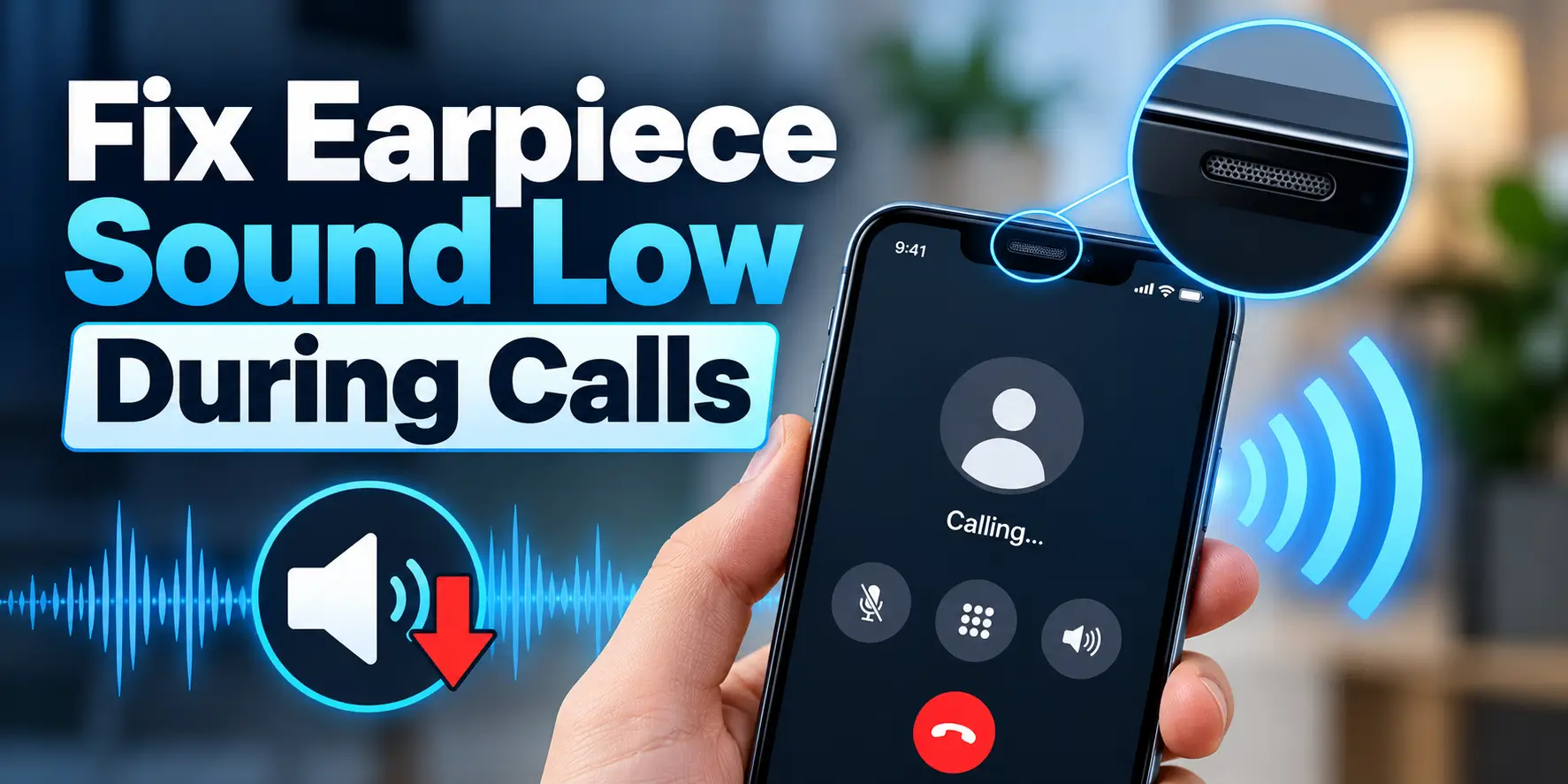
If your earpiece sound is low during calls, first turn up call volume while a call is active, disconnect Bluetooth, and check whether a screen protector or dirt is blocking the top earpiece. If speakerphone sounds clear but normal calls do not, focus on the earpiece and its audio path.
Try these safe checks before paying for a repair. Open Fix My Speaker and run Deep Clean to shake loose dust. It is free and works in your browser. I repair phones for a living, and weak call audio is one of the most common faults I see. Most phones are not broken. Something is blocking, covering or rerouting the sound, and this guide helps you find what.
Quick Diagnosis Before Going to a Repair Shop
| What you notice | What to check next |
|---|---|
| Speakerphone is clear, earpiece is faint | In-call volume, earpiece obstruction, routing, earpiece hardware |
| Only one caller sounds quiet | Caller’s microphone, their connection, another caller test |
| Sound improved after case removal | Case or accessory obstruction |
| Problem started after protector installation | Protector alignment or covered slit |
| Both earpiece and speakerphone sound bad | Call quality, software, network, multiple audio issues |
| Quietness began after a drop or liquid exposure | Stop DIY attempts and seek inspection |
These patterns narrow the possibilities, but they do not confirm a specific failed component.
Check Whether the Earpiece or Loudspeaker Is the Problem
Your phone can have separate audio components. That means music can sound normal even when the earpiece is clogged or damaged.
- Make a call to someone you trust or call voicemail.
- Listen with speakerphone turned off.
- Switch to speakerphone and compare the voice.
- Switch back to the earpiece and listen again.
If the voice is clear on speakerphone but faint at your ear, investigate the earpiece, call routing, and in-call volume. If both modes sound poor, consider the caller’s microphone, network quality, software, or more than one hardware issue.
If only one caller sounds quiet, ask another person to call you. The other caller may be speaking softly, holding their microphone incorrectly, or dealing with a connection problem.
Turn Up Call Volume During an Active Call
This is the quickest check, and it is often missed. Phones manage call, media, ringtone, and alarm levels separately.
- Start or answer a normal phone call.
- Keep speakerphone off.
- Press the phone’s Volume Up button several times.
- Listen again and check the volume indicator, if shown.
Changing media volume from the home screen may not change call loudness. Adjust the volume during the call itself. Menu labels and button behavior can vary by phone model.
Disconnect Bluetooth and Check the Audio Output
Call sound may be routed to wireless earbuds, a watch, a car system, or another connected device. You might hear faint sound from the phone while the actual call output is elsewhere.
- During the call, open the audio-output option on the call screen.
- Select the phone or handset option.
- Temporarily disconnect Bluetooth from Quick Settings or Control Center.
- Make another test call.
If this fixes it, review paired devices and automatic connection behavior. Do not reset all network settings as a first step. That can remove saved Wi-Fi and Bluetooth connections without addressing a blocked earpiece.
Remove Anything Blocking the Earpiece
A screen protector, case, sticker, or dust film can partly cover the narrow earpiece opening. This is especially worth checking if the problem began after fitting a new accessory.
- Remove the phone case.
- Inspect the top edge under a bright light.
- Check whether the screen protector overlaps or misaligns with the earpiece slit.
- Make a test call with the case removed.
If the protector is visibly covering the opening, have it correctly repositioned or replaced with one designed for your exact model. Do not cut it while it is on the phone. Avoid removing a protector that is bonded or installed in a way that risks display damage.
Dust and Earwax on the Earpiece Grill
The earpiece grill is a tiny mesh that sits against your ear and cheek. Earwax, skin oil, makeup and pocket lint pack into it slowly. In dusty cities and humid monsoon weather, it clogs even faster.
A clogged grill does not break the phone. It muffles the voice, and high sounds fade first, so people sound flat and far away. If music sounds dull too, read why a speaker sounds muffled.
- Switch the phone off.
- Take off the case.
- Hold the phone upright with the earpiece slot tilted slightly down, so loose dust can fall out.
- Sweep a clean, dry, soft-bristled brush across the slot with light strokes.
- Dab the slot once with a small piece of clear tape on your fingertip to lift surface lint or wax, then peel it away.
- Switch the phone on and call a friend to test.
Use an Earpiece Sound Mode Carefully
A speaker-cleaning tone may help in limited situations involving light moisture or loose debris, but it is not a universal earpiece repair.
Many websites and browser tools send sound to the phone’s main loudspeaker. During a regular call, the earpiece is a separate audio route. Therefore, a tone played from a web page may not reach the earpiece at all.
- Confirm which speaker the tool is designed to target.
- Use only a mode specifically documented for your device and symptom.
- Keep volume moderate and use only a brief cycle if the manufacturer or tool instructions recommend it.
- Stop if you hear harsh distortion, unusual vibration, or heat.
- Retest with a normal call.
Do not run loud tones repeatedly or assume a successful loudspeaker test means the earpiece is fixed. For an earpiece that remains quiet, continue with the checks below. If your phone was submerged or exposed to saltwater, sugary drinks, or another contaminating liquid, switch it off if safe and seek service rather than experimenting with tones.
Check Your Call Settings and Network
Sometimes a setting is lowering the voice. Press volume up during a live call, since call volume is separate from media volume. Turn Bluetooth off too, because a forgotten earbud can take the call audio.
- iPhone: Go to Settings, Accessibility, Audio & Visual and turn off Phone Noise Cancellation. This switch exists only on iPhone 12 and earlier.
- Samsung Galaxy: Go to Settings, Accessibility, Hearing enhancements and make sure Mute all sounds is off. Then try Adapt sound under Sounds and vibration, Sound quality and effects.
- Redmi, Realme, Vivo, Oppo: Menu names differ, so search for call or sound in Settings. Turn off any call sound effect you did not set yourself.
If the voice is low only with certain callers or in certain rooms, the network is the cause, not your earpiece. Turn Wi-Fi calling off and on, test on mobile data, and try a call near a window.
Then restart the phone and install pending
Restart and Test With Another Call Method
A temporary software issue can affect routing or call behavior. A restart is a low-risk step after checking volume and output.
- Restart the phone normally.
- Make a cellular call in a location with reliable reception.
- If available, try a call through a trusted internet-calling app.
- Compare the results without changing several settings at once.
If only cellular calls sound unclear, reception, carrier calling features, or the other person’s connection may be involved. If every call method sounds faint through the earpiece, blockage or earpiece hardware becomes more likely. Internet calls use different software paths, so they are a clue, not a definitive hardware test.
Know When to Go for Earpiece Repair
Stop DIY troubleshooting and arrange professional inspection if:
- The earpiece remains quiet at maximum in-call volume after safe cleaning and routing checks.
- Sound cuts in and out when the phone moves.
- The phone was dropped, bent, or exposed to liquid before the fault began.
- The grille or display is damaged.
- You hear persistent crackling, buzzing, or complete silence through the earpiece.
Ask the repairer to test the earpiece speaker, mesh, connectors, and relevant audio circuitry before approving parts replacement. Back up important data and check warranty or authorized service options first. Do not open the phone yourself if you lack repair tools and experience, as seals, cables, and the display can be damaged.